

One-stop Video Translation Access
Last updated: 2025-12-16 17:48:22Download PDF
Introduction to the Dubbing-Level Video Translation Feature
The video translation feature integrates multiple powerful atomic capabilities of MPS, including subtitle erasure, extraction, translation, embedding, and AI dubbing, delivering a one-stop solution for the entire translation workflow. For details about the pricing, see Billing Instructions. The service supports the following two solutions:
Subtitle-Level Video Translation: Erasure + Subtitle Extraction + Subtitle Translation. Automatically identifies original subtitles within videos, performs precise erasure and large-model-based translation, then seamlessly embeds the translated subtitles into the video.
Dubbing-Level Video Translation: In addition to subtitle-level translation, this solution provides natural and fluent AI dubbing, generating a new video with AI-translated subtitles and voiceovers in the target language.
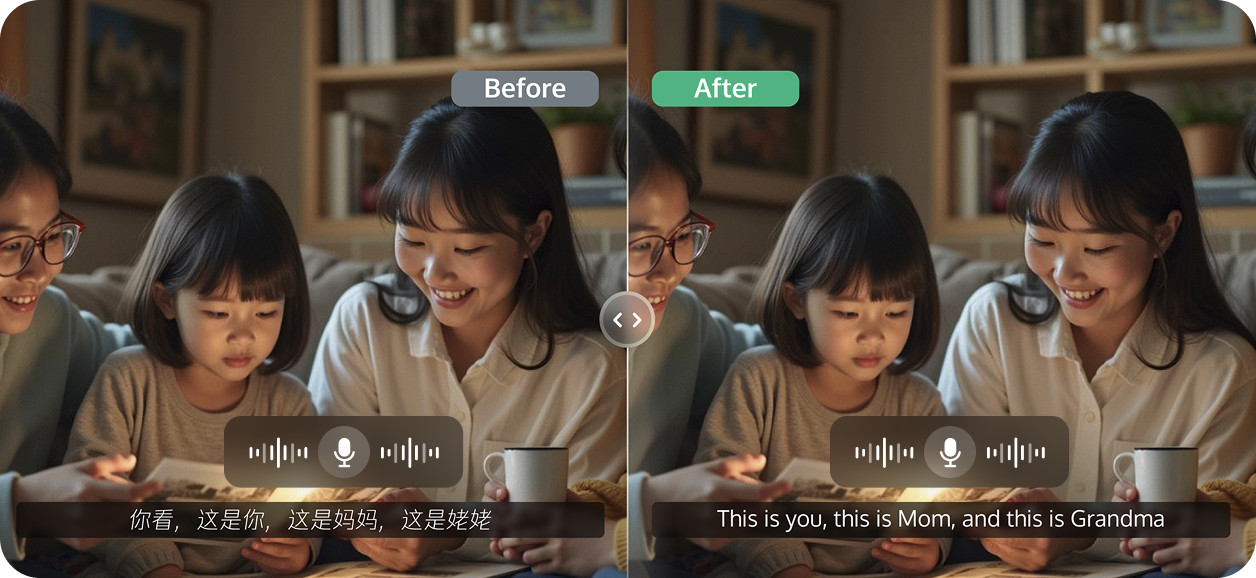
Dubbing-Level Video Translation Integration
Prerequisites
Before accessing Smart Erase, you need to complete the following prerequisites for using MPS: Register and log in to a Tencent Cloud account, activate MPS, and grant permissions to service roles.
For detailed guidance, see Quick Start. For account authorization issues, see Account Authorization.
Initiating a Dubbing-Level Video Translation Task
Method 1: Initiating a Task in the Console
1. Go to the Create a Task page in the console, specify the input file path, orchestration workflow, and output path in sequence.
2. In the orchestration configuration, select the Media AI - Intelligent Analysis node.
3. On the pop-up page on the right, select the preset template 25, enable Extended Parameters in the More Settings section, and then fill in the required parameters in ExtendedParameter based on Description of ExtendedParameter in the following section.
Note:
The basic edition feature of intelligent erasure - watermark removal is used by default when the preset template 25 is selected. If you need to initiate a video translation task, you should pass parameters in ExtendedParameter. Otherwise, MPS only performs watermark removal on the video.
The MPS console automatically escapes JSON data. Do not fill in escaped strings. Otherwise, the task will fail.
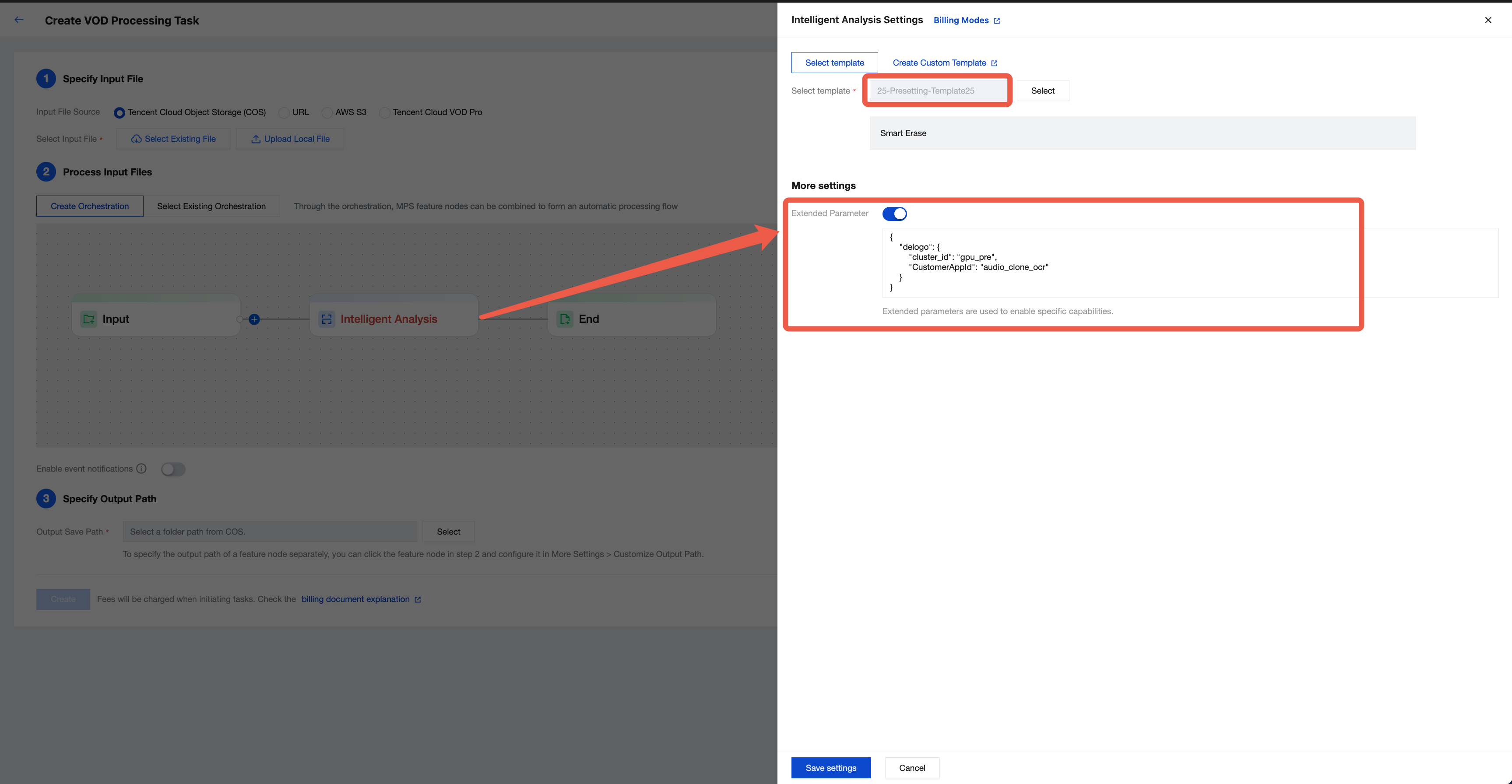
Method 2: Initiating a Task by Using an API
Call the ProcessMedia API, select the AiAnalysisTask task, set Definition to 25 (ID of the preset template), and pass extended parameters in ExtendedParameter. You can specify this parameter to achieve video translation capabilities. For parameter values, see Description of ExtendedParameter in the following section. The JSON example for ProcessMedia is as follows:
{"InputInfo":{ //Input video path. Replace it with the path of your original video."Type":"URL","UrlInputInfo":{"Url":"https://test-1234567.cos.ap-nanjing.myqcloud.com/mps_test/myvideo.mp4"}},"OutputStorage":{ //Output Cloud Object Storage (COS) bucket. Replace it."Type":"COS","CosOutputStorage":{"Bucket":"test","Region":"ap-nanjing"}},"OutputDir":"/mps_test/output/",//Output folder path. Replace it."AiAnalysisTask":{"Definition":25 //Preset template ID. Enter 25."ExtendedParameter":"{\"delogo\":{\"cluster_id\":\"gpu_pre\",\"CustomerAppId\":\"audio_clone_ocr\"}}" //Extended parameters, used to specify the specific video translation capability.},"TaskNotifyConfig":{ //Optional. Event callback notification configuration."NotifyType":"URL","NotifyUrl":"http://www.qq.com/callback"}}
It is recommended that you use API Explorer for rapid verification. You can copy the above JSON data to the JSON mode in API Explorer, switch to the Form mode for automatic parsing, adjust required parameters such as input and output paths, and then click Initiate Call.
In API Explorer, the positions of ExtendedParameter in Form and JSON input modes are as follows:
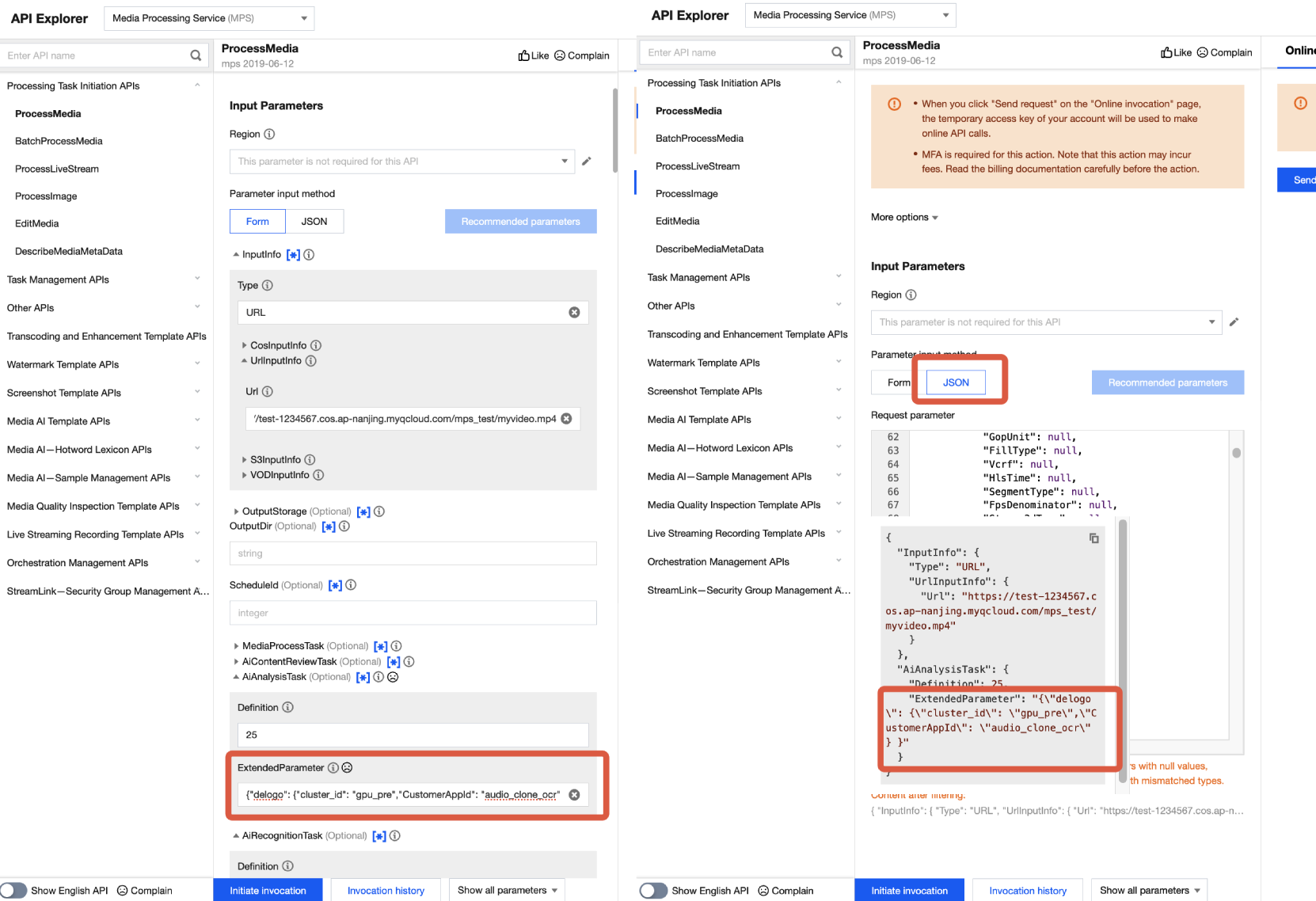
Note:
When you fill in ExtendedParameter in the Form mode of API Explorer, you need to directly pass JSON data instead of escaping it to a string. However, when you use the JSON mode of API Explorer or directly use the API, you should pass an escaped string.
In the Form mode of API Explorer, pass JSON data in ExtendedParameter:
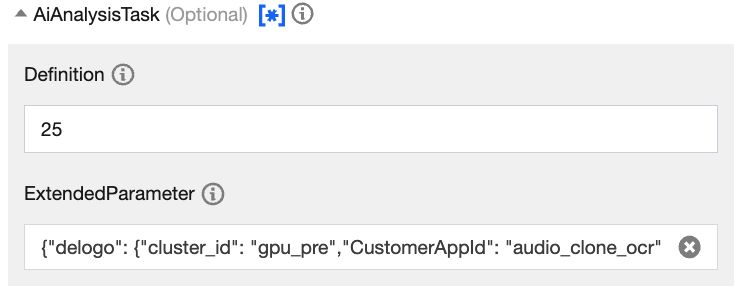
In the JSON mode of API Explorer, pass an escaped string in ExtendedParameter. Example:
{\"delogo\":{\"cluster_id\":\"gpu_pre\",\"CustomerAppId\":\"audio_clone_ocr\"}}
Description of ExtendedParameter
Set ExtendedParameter appropriately based on your video translation use cases. This section provides common scenarios.
Scenario 1: OCR Subtitle Extraction and Translation + Removal of Original Subtitles + Embedding of New Subtitles + AI Clone Dubbing (the Most Common Scenario)
Video subtitles and dubbing are translated into the specified language to generate a new video with subtitles and dubbing in the target language. The subtitles and dubbing content originate from OCR text extraction (extracting source language captions from the video). For videos with source language captions on the screen, it is recommended to perform configurations based on this scenario.
Billing Instructions
To use the capabilities in this scenario, you will be charged for three billing items: Subtitle Removal, OCR-based Subtitle Extraction and Translation + Subtitle Embedding, and Text To Speech (TTS) Replacement (Cloned Timbre).
If subtitle embedding is disabled, you will be charged for the three billing items: Subtitle Removal, OCR-based Subtitle Extraction and Translation, and TTS Replacement (Cloned Timbre).
Passing Parameters in ExtendedParameter
{"delogo": {"cluster_id": "gpu_pre","CustomerAppId": "audio_clone_ocr"}}//If you need to directly call the API or use the JSON mode of API Explorer, use the escaped version: {\"delogo\":{\"cluster_id\":\"gpu_pre\",\"CustomerAppId\":\"audio_clone_ocr\"}}.
Specifying a Language
By default, the language is translated from simplified Chinese into English. If you need to use other languages, pass in the
translate_src_language and translate_dst_language parameters in ExtendedParameter. For the supported languages and corresponding codes, see Supported Languages for Video Translation. Example:{"delogo": {"cluster_id": "gpu_pre","CustomerAppId": "audio_clone_ocr","subtitle_param": {"translate_src_language": "de", //German"translate_dst_language": "id" //Indonesian}}}/*If you need to directly call the API or use the JSON mode of API Explorer, use the escaped version:{\"delogo\":{\"cluster_id\":\"gpu_pre\",\"CustomerAppId\":\"audio_clone_ocr\",\"subtitle_param\":{\"translate_src_language\":\"de\",\"translate_dst_language\":\"id\"}}}translate_src_language: specifies the source language of the video. If this parameter is not passed, the source language is Chinese by default.translate_dst_language: specifies the target language for video translation. If this parameter is not passed, the target language is English by default.*/
Disabling Subtitle Embedding
If you do not need to embed the subtitles of the target language into the video, you can add the parameter setting
"use_draw": false.{"delogo": {"cluster_id": "gpu_pre","CustomerAppId": "audio_clone_ocr","subtitle_param": {"use_draw": false}}}/*use_draw: If this parameter is not passed or is set to true, subtitle embedding is enabled. If this parameter is set to false, subtitle embedding is disabled.If you need to directly call the API or use the JSON mode of API Explorer, use the escaped version:{\"delogo\":{\"cluster_id\":\"gpu_pre\",\"CustomerAppId\":\"audio_clone_ocr\",\"subtitle_param\":{\"use_draw\":false}}}*/
Scenario 2: ASR Subtitle Extraction and Translation + Embedding of New Subtitles + AI Clone Dubbing
The processing in scenario 2 is similar to that in scenario 1. That is, video subtitles and dubbing are translated into the specified language to generate a new video with subtitles and dubbing in the target language. However, in scenario 2, the subtitles and dubbing content originate from Automatic Speech Recognition (ASR) (recognizing the source voice content in the video and transcribing it into subtitles). In scenario 2, subtitle removal is not automatically performed.
Billing Instructions
To use the capabilities in this scenario, you will be charged for two billing items: ASR-based Subtitle Generation and Translation + Subtitle Embedding, and TTS Replacement (Cloned Timbre). For details about the pricing, see Billing Instructions.
If subtitle embedding is disabled, you will be charged for the two billing items: ASR-based Speech Translation and TTS Replacement (Cloned Timbre). For details about the pricing, see Billing Instructions.
Passing Parameters in ExtendedParameter
{"delogo": {"cluster_id": "gpu_pre","CustomerAppId": "audio_clone_asr"}}//If you need to directly call the API or use the JSON mode of API Explorer, use the escaped version: {\"delogo\":{\"cluster_id\":\"gpu_pre\",\"CustomerAppId\":\"audio_clone_ocr\"}}.
Specifying a Language
By default, the language is translated from simplified Chinese into English. If you need to use other languages, pass in the
translate_src_language and translate_dst_language parameters in ExtendedParameter. For the supported languages and corresponding codes, see Supported Languages for Video Translation. Example:{"delogo": {"cluster_id": "gpu_pre","CustomerAppId": "audio_clone_asr","subtitle_param": {"translate_src_language": "de", //German"translate_dst_language": "id" //Indonesian}}}/*If you need to directly call the API or use the JSON mode of API Explorer, use the escaped version:{\"delogo\":{\"cluster_id\":\"gpu_pre\",\"CustomerAppId\":\"audio_clone_asr\",\"subtitle_param\":{\"translate_src_language\":\"de\",\"translate_dst_language\":\"id\"}}}translate_src_language: specifies the source language of the video. If this parameter is not passed, the source language is Chinese by default.translate_dst_language: specifies the target language for video translation. If this parameter is not passed, the target language is English by default.*/
Disabling Subtitle Embedding
If you do not need to embed the subtitles of the target language into the video, you can add the parameter setting
"subtitle_param": { "use_draw": false } in ExtendedParameter.{"delogo": {"cluster_id": "gpu_pre","CustomerAppId": "audio_clone_asr","subtitle_param": {"use_draw": false}}}/*If you need to directly call the API or use the JSON mode of API Explorer, use the escaped version:{\"delogo\":{\"cluster_id\":\"gpu_pre\",\"CustomerAppId\":\"audio_clone_asr\",\"subtitle_param\":{\"use_draw\":false}}}*/
Scenario 3: AI Dubbing with Standard Timbre
The AI dubbing feature of video translation supports two timbre types:
Standard timbre: supports Chinese, English, and Japanese. It provides a variety of male, female, and child voice selections. The fee for TTS Replacement (Standard Timbre) will be charged.
Cloned timbre: restores voice features based on leading AI voice cloning technology. The fee for TTS Replacement (Cloned Timbre) will be charged.
By default, the cloned timbre is used in both scenario 1 and scenario 2. The standard timbre capability is being upgraded and is available only for beta testing. If you need to use it, contact sales or submit a ticket to obtain support.
Appendix: Supported Languages for Video Translation
The video translation feature supports the following languages when AI dubbing with cloned timbre is selected:
Language | Code | Available for Source Language (translate_src_language) | Available for Target Language (translate_dst_language) |
Chinese | zh | ✓ | ✓ |
English | en | ✓ | ✓ |
Japanese | ja | ✓ | ✓ |
German | de | ✓ | ✓ |
French | fr | ✓ | ✓ |
Korean | ko | ✓ | ✓ |
Russian | ru | ✓ | ✓ |
Ukrainian | uk | ✓ | ✓ |
Portuguese | pt | ✓ | ✓ |
Italian | it | ✓ | ✓ |
Spanish | es | ✓ | ✓ |
Indonesian | id | ✓ | ✓ |
Dutch | nl | ✓ | ✓ |
Turkish | tr | ✓ | ✓ |
Filipino | fil | ✓ | ✓ |
Malay | ms | ✓ | ✓ |
Greek | el | ✓ | ✓ |
Finnish | fi | ✓ | ✓ |
Croatian | hr | ✓ | ✓ |
Slovak | sk | ✓ | ✓ |
Polish | pl | ✓ | ✓ |
Swedish | sv | ✓ | ✓ |
Hindi | hi | ✓ | ✓ |
Bulgarian | bg | ✓ | ✓ |
Romanian | ro | ✓ | ✓ |
Arabic | ar | ✓ | ✓ |
Czech | cs | ✓ | ✓ |
Danish | da | ✓ | ✓ |
Tamil | ta | ✓ | ✓ |
Hungarian | hun | ✓ | ✓ |
Vietnamese | vi | ✓ | ✓ |
If AI dubbing with standard timbre is selected, various male, female, and child voice options are supported. The standard timbre capability is being upgraded and is currently only available for beta testing. If you want to learn about specific timbre and the language list, contact sales or Submit A Ticket for support.
Querying the Task Result
A processed video file is generated in the video translation task and is saved in the output path configured for the task.
Querying the Result in the Console
1. You can check the task status on the Task Management page in the console. When the subtask status is Successful, click Callback JSON.
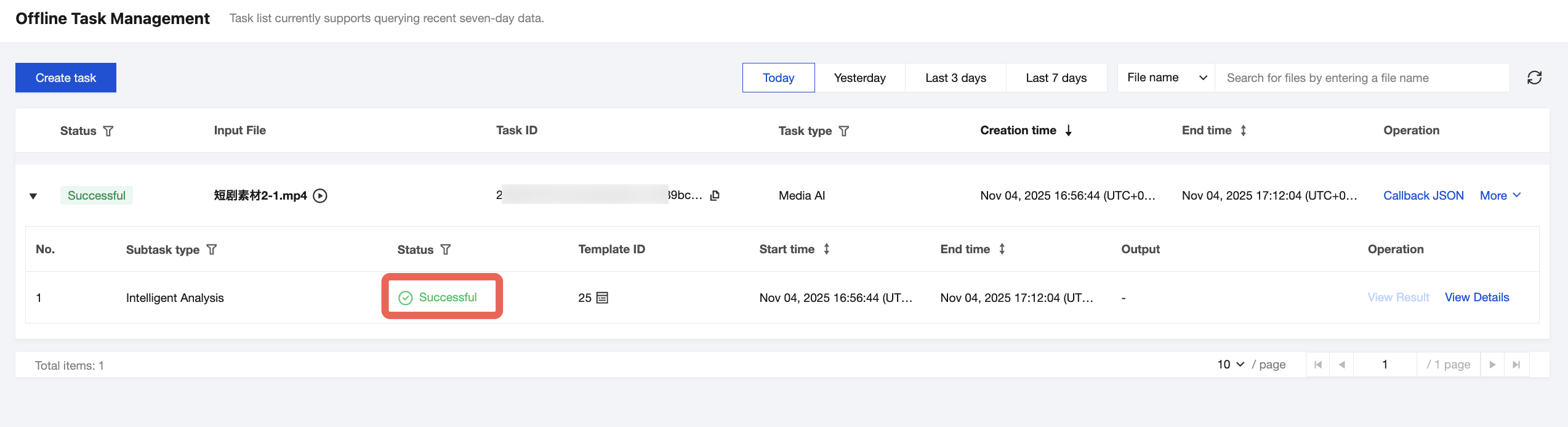
2. You can find the output file path in the output message.

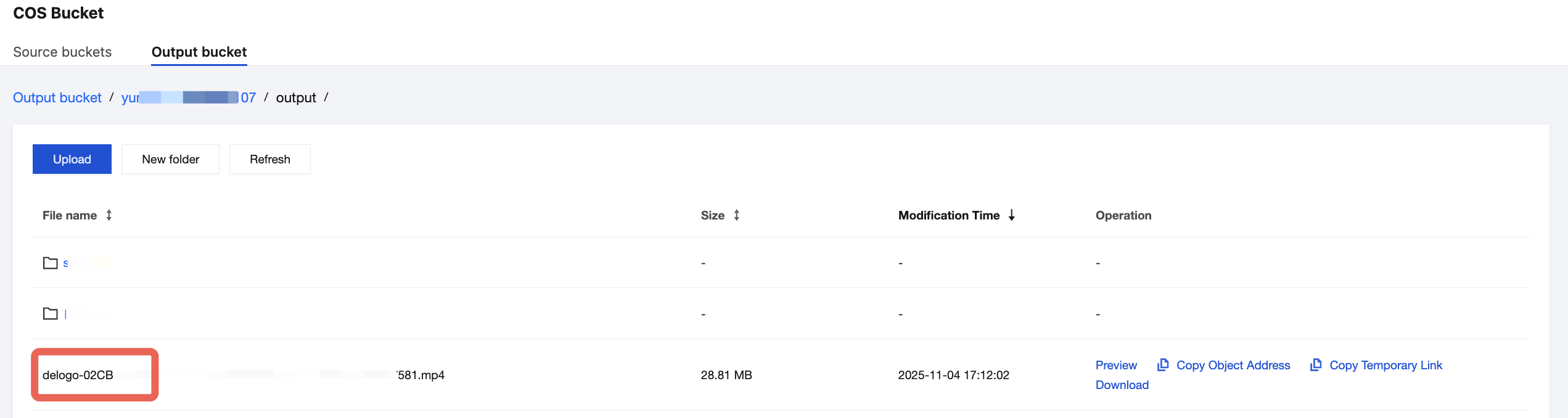
If COS is used as the output path, you can find the output file on the Orchestration Management > COS Bucket > Output Bucket page in the MPS console. The video with a file name similar to "delogo-xxx.mp4" is the video file generated after translation.
Event Notification Callback
When you use ProcessMedia to initiate an MPS task, you can specify the TaskNotifyConfig parameter to configure event callback. After the task processing is completed, the task result will be called back through the configured callback information. You can parse the event notification result through ParseNotification.
Querying the Task Result by Calling the API
When you use ProcessMedia to initiate a media processing task, a task ID (TaskId) will be returned, such as 24000022-WorkflowTask-b20a8exxxxxxx1tt110253 and 24000022-ScheduleTask-774f101xxxxxxx1tt110253. Call the DescribeTaskDetail API and enter the task ID to obtain the task result. You need to parse the WorkflowTask ->AiAnalysisResultSet field to obtain the task result.
Subtitle-Level Video Translation Integration
Scenario 1: Without Erasure, Generating Subtitles with ASR Speech Recognition and Translation
You can use the smart subtitle feature to generate subtitle files in the target language, and then call the transcoding feature to embed subtitles into the video. For details, see Smart Subtitle Access Tutorial.
Scenario 2: Erasing Original Subtitles, Translating into Other Languages, and Re-rendering onto Video Frames
Refer to Smart Erasure Integration - Subtitle-level Translation for a one-stop solution to erase original subtitles, extract subtitles, translate subtitles, and re-render them onto the video.