

Smart Erase Template
Last updated: 2025-09-02 17:42:11Download PDF
Scenarios
Smart erase enables blurring, mosaic, or seamless processing of elements like logos, subtitles, human faces, and license plates in video images. This feature is widely used in multiple fields, such as short drama platforms, short video platforms, cross-border e-commerce, and independent media studios. For pricing, see billing instructions in Smart Erase. You can create custom smart erase templates and preset different processing parameters for different application scenarios for future use.
Prerequisites
1. You have registered a Tencent Cloud account.
2. You have enabled Media Processing Service (MPS) and logged in to the MPS console.
Template Configuration Guide
Go to the Template Management > Media AI Template > Intelligent Erase page. The system provides several preset templates that you can use directly. You can click Create Intelligent Erase Template to create a custom template.
Basic Configurations: Template Name and Erasing Type
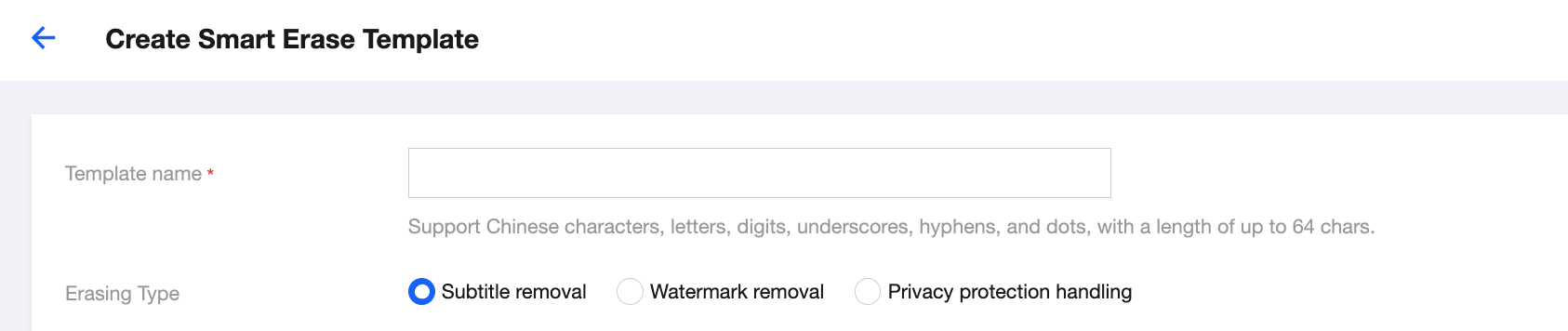
Configuration Item | Description |
Template Name | Only Chinese characters, English letters, digits, underscores (_), hyphens (-), and periods (.) are supported, and the length should not exceed 64 characters. |
Erasing Type | Subtitle removal: Erase subtitles (text content) in video images. The "Subtitle Removal" fee is charged. For pricing, see billing instructions in Smart Erase. Watermark removal: Erase graphic content such as logos, icons, and user profile photos in video images. Two modes are supported: Basic Edition and Advanced Edition. The "Smart Erase (Logo Removal - Basic Edition)" fee or the "Logo Removal - Advanced Edition" fee is charged. Privacy protection handing: Blur or apply mosaics to human faces and license plates in video images. The "Privacy Protection Processing (Face and License Plate)" fee is charged. |
Configuration Guide for "Subtitle Removal"
When the erasing type is Subtitle removal, the following configurations are supported.
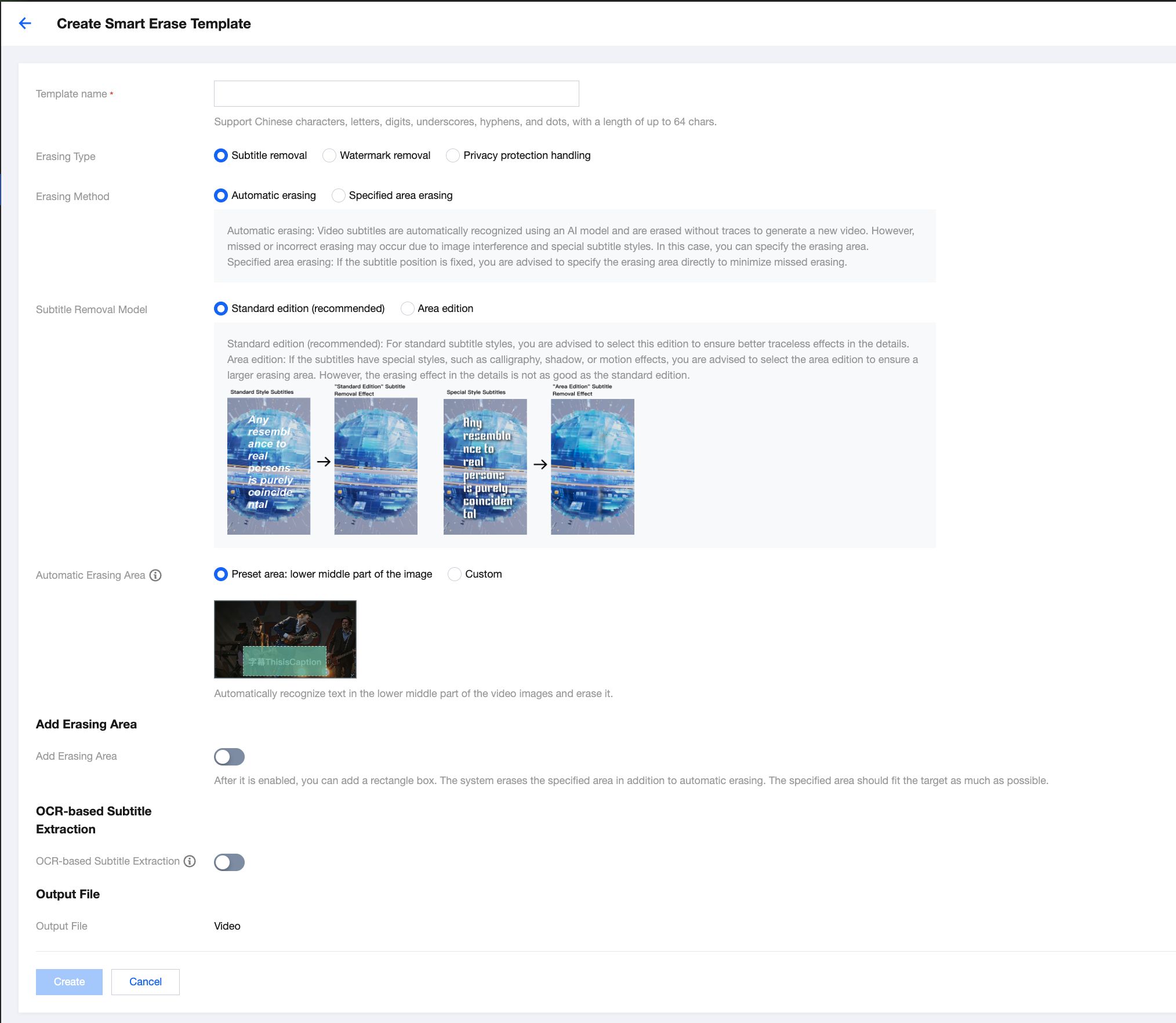
Configuration Item | Description |
Erasing Method | Automatic erasing: Automatically recognize existing text areas in the entire video image by using Optical Character Recognition (OCR), and erase the text in the area specified by "Automatic Erasing Area". Automatic erasing is recommended for batch processing. Specified area erasing: Use specified area erasing to minimize missed erasing issues if the subtitle position in the video image is fixed. The system directly erases subtitles in the "target erasing area" without automatically recognizing or erasing text content in other areas of the video image. Please specify the complete "target erasing area". |
Subtitle Removal Model | Different models affect the removal effect to a certain extent. Standard Edition (recommended): Usually, this edition is recommended. It is applicable for videos with standard subtitle styles, providing a better removal effect and superior detail restoration. Area Edition: It is applicable for subtitles with special styles (such as background shadows, cursive fonts, and dynamic effects), with a larger erasing area but poorer removal effect compared with the Standard Edition. Example: 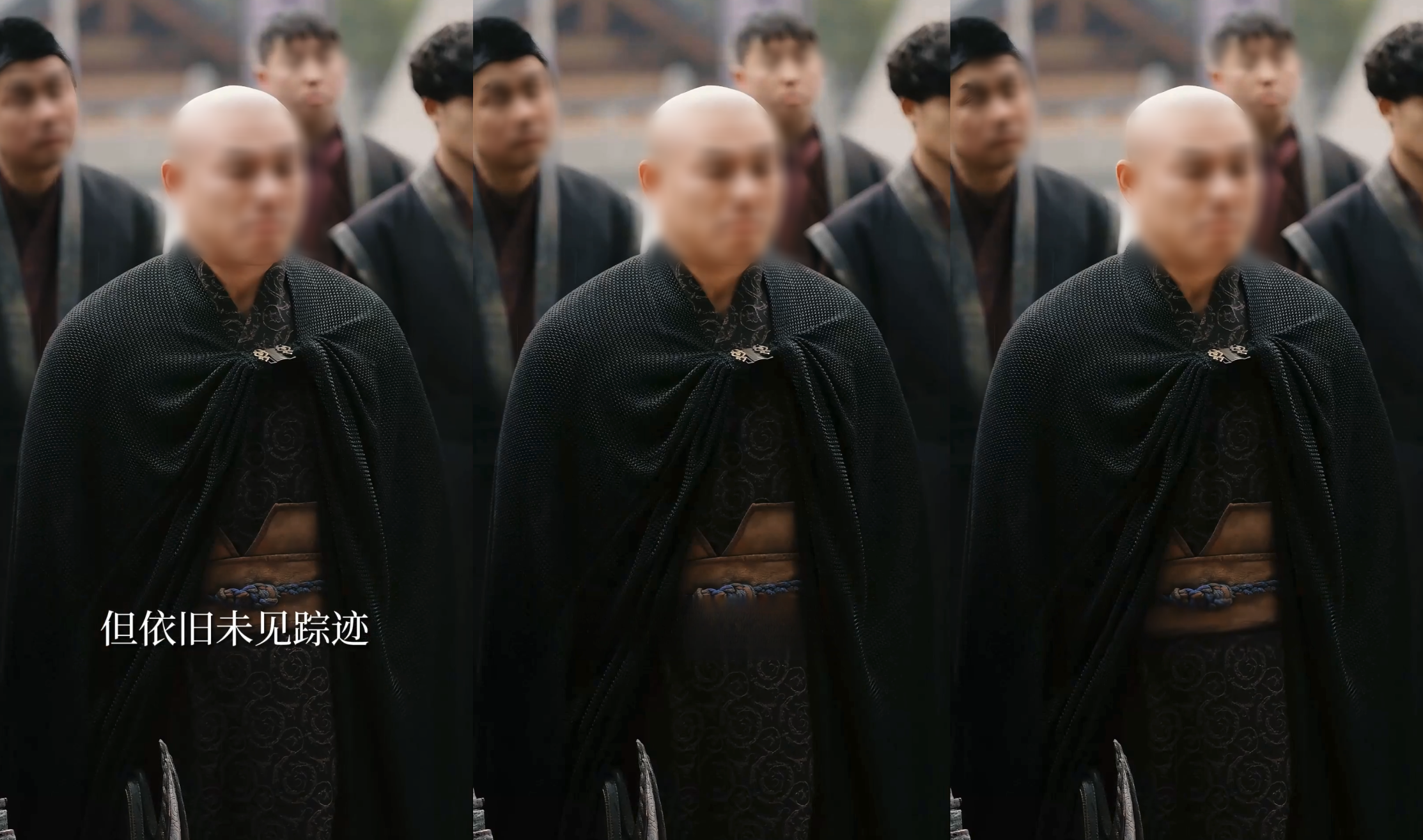 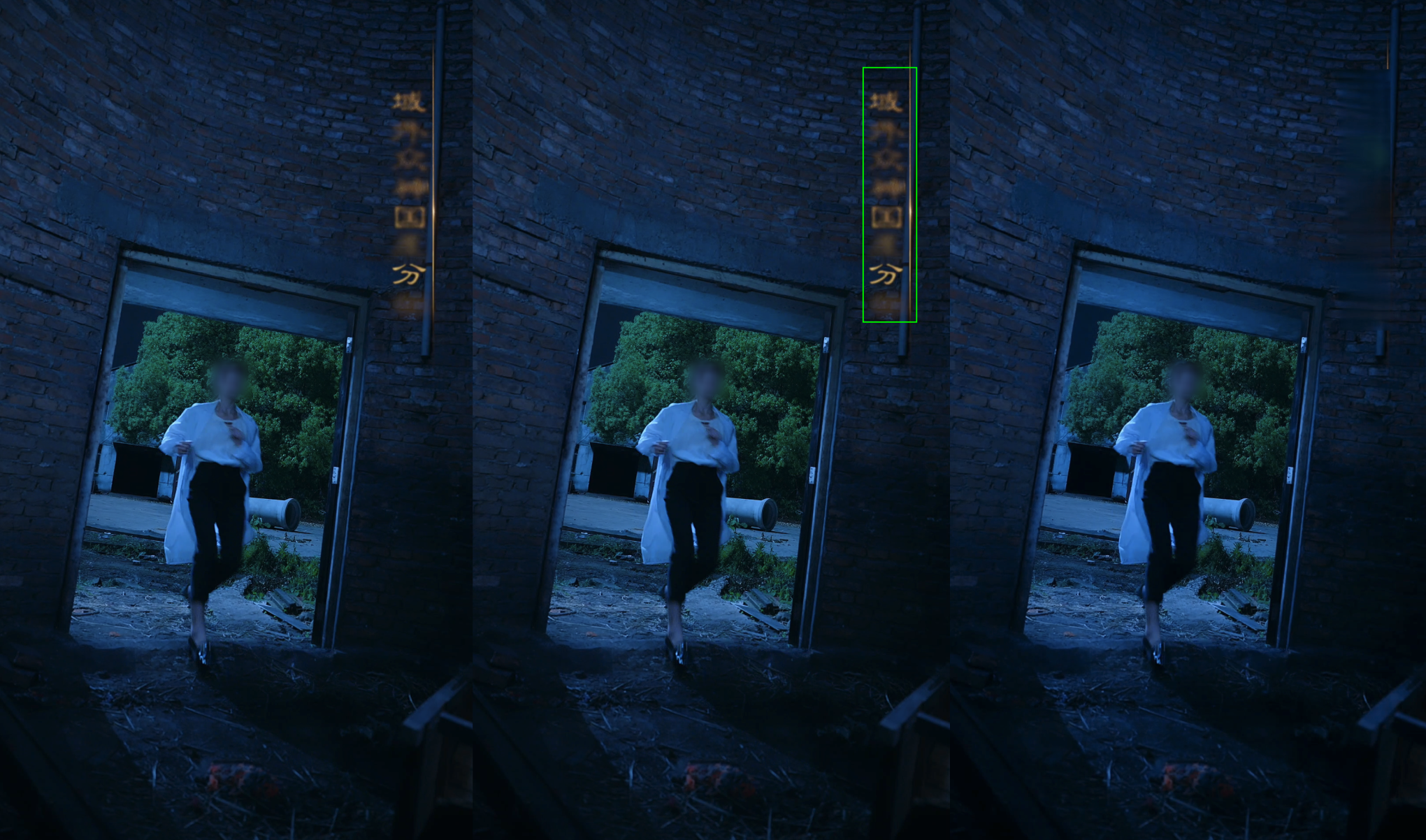 |
Erasing Method: Automatic Erasing
The system automatically identifies existing text areas in the entire video image by using OCR and erases the text in the area specified by "Automatic Erasing Area". Automatic erasing is recommended for batch processing.
Configuration Item | Description |
Auto Erasing Area | Preset area: Lower central area of the video image. 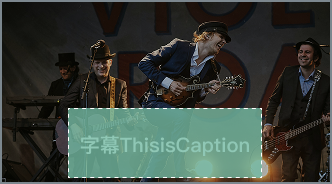 Custom: If your video is similar to the example below and has other text content in the lower central area that does not require erasing, you can specify the approximate position of subtitles to reduce incorrect erasing issues. 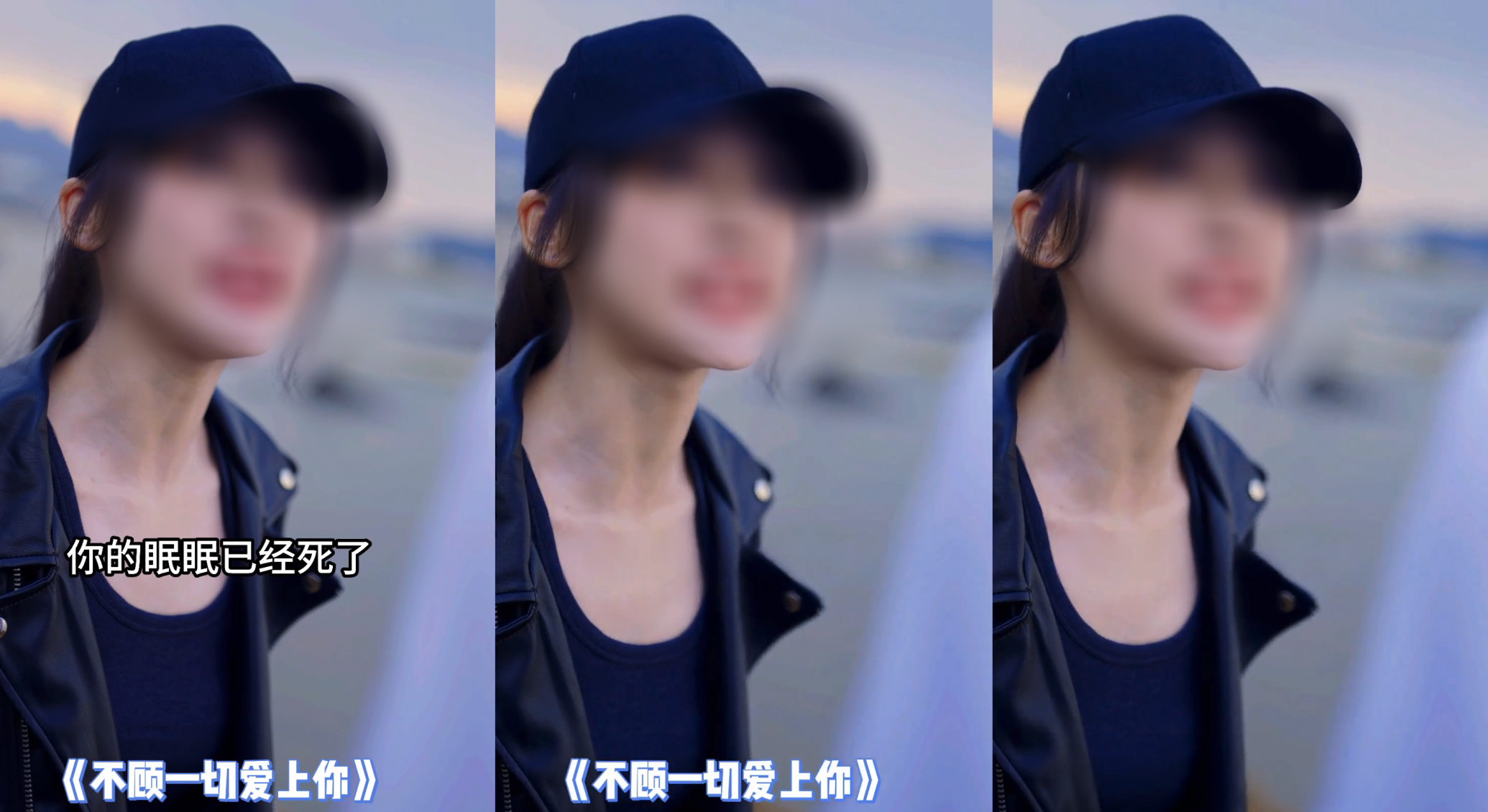 |
Add Erasing Area | Advanced feature. Once it is enabled, you can add rectangle boxes. The system erases text content in these boxes on the basis of automatic erasing. This feature is mainly used to specify fixed text areas for erasing to reduce missed erasing issues. In the following example, except for the "automatic erasing area" (subtitle position), two additional "erasing areas" (the warning text area in the upper left corner and the show title area at the bottom) are added to ensure that text in these fixed areas is erased. 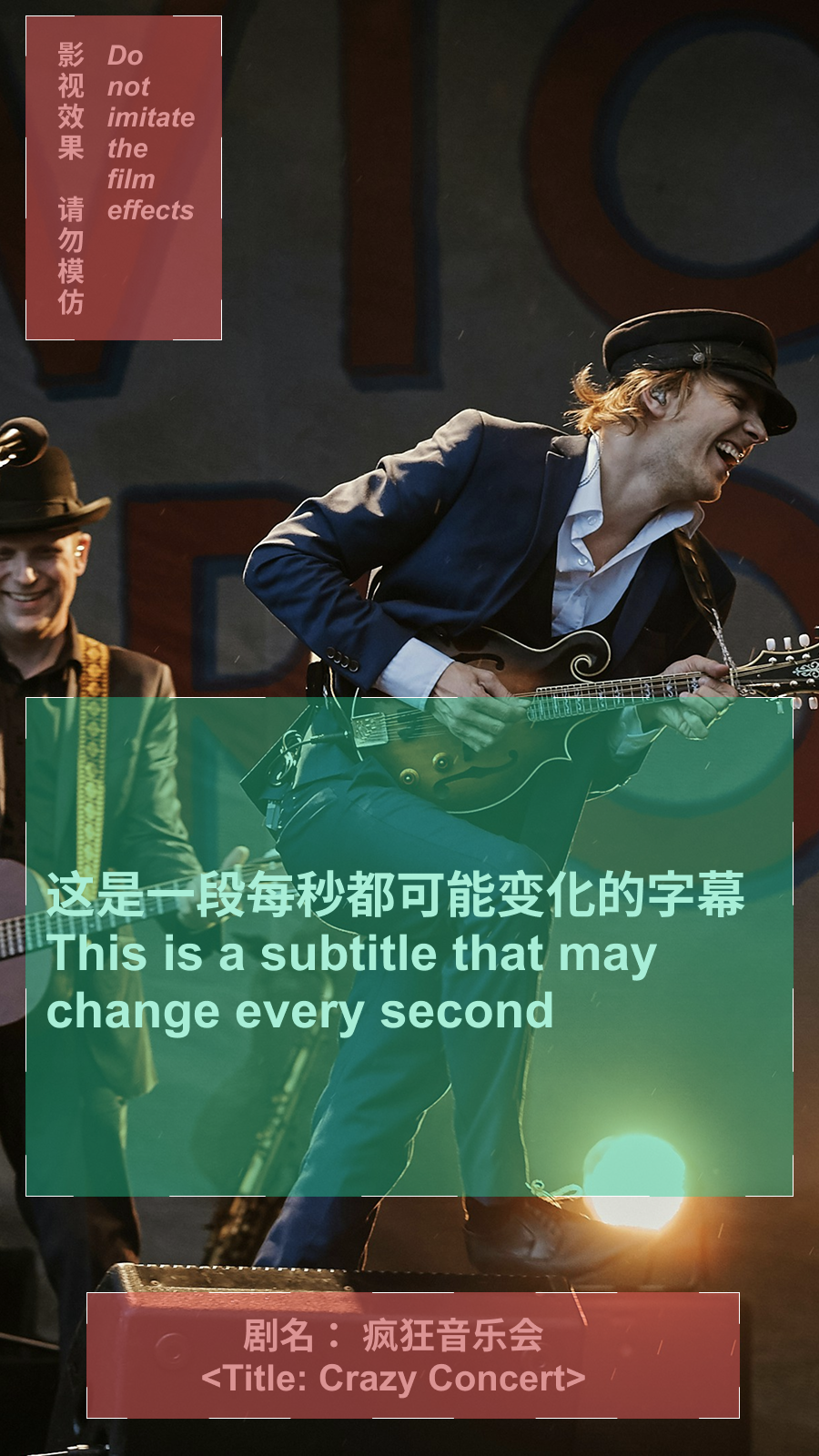 |
OCR Extract Subtitles | Advanced feature. Once it is enabled, the system can perform subtitle removal and extract subtitle text through OCR. Note: When multiple text areas exist in the video image, the system selects only one text area for extraction and erasing, typically the most stable one that exists for the longest time. Only text in the "automatic erasing area" is identified. Text in other areas is not extracted or erased. |
Erasing Method: Specified Area Erasing
If the subtitle position in the video image is fixed, you can use specified area erasing to minimize missed erasing issues.
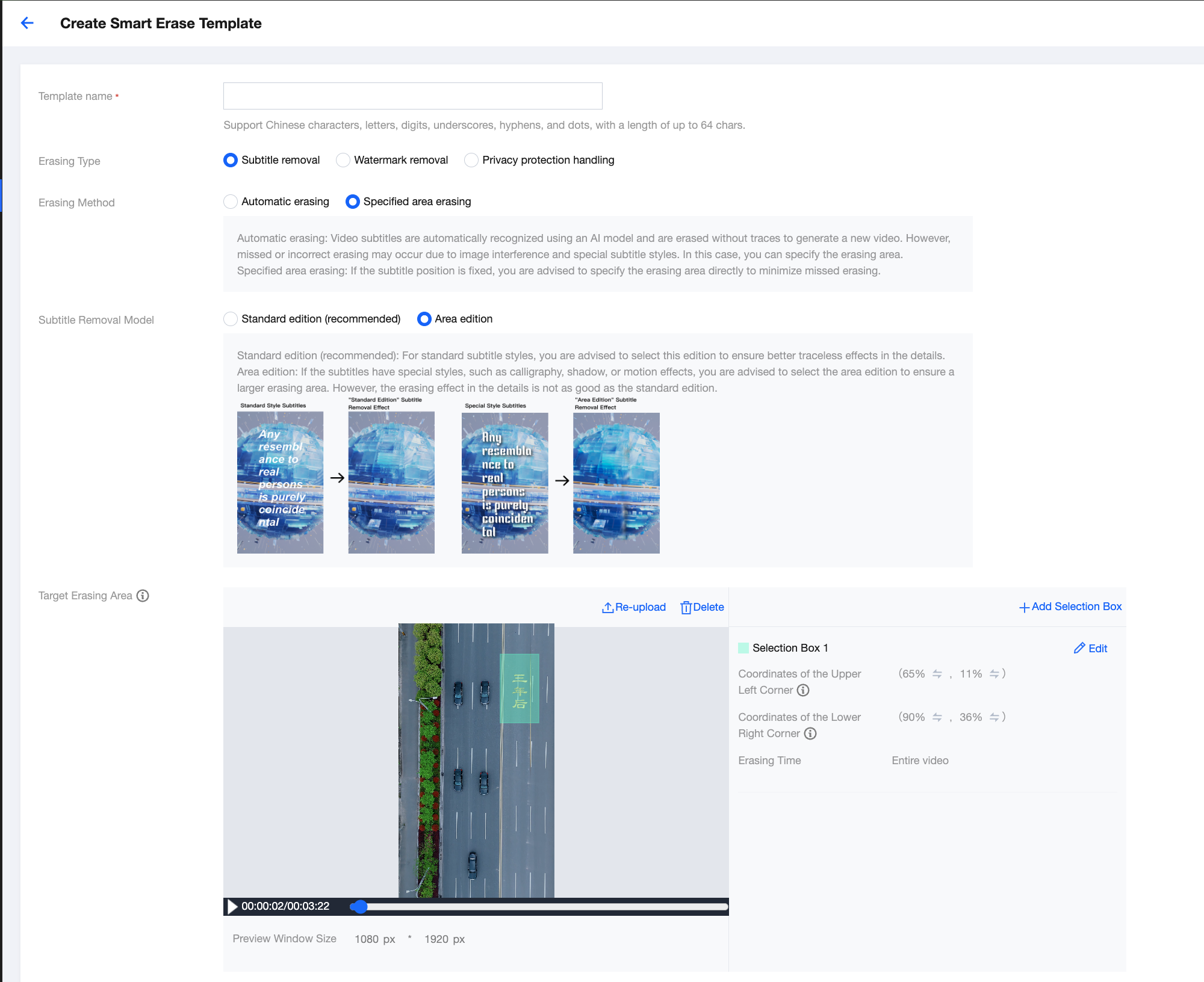
Configuration Item | Description |
Target Erasing Area | After the target erasing area is specified, the system directly erases text content in this area and does not automatically recognize or erase text content in other areas of the video image. Please specify the complete "target erasing area". Example: 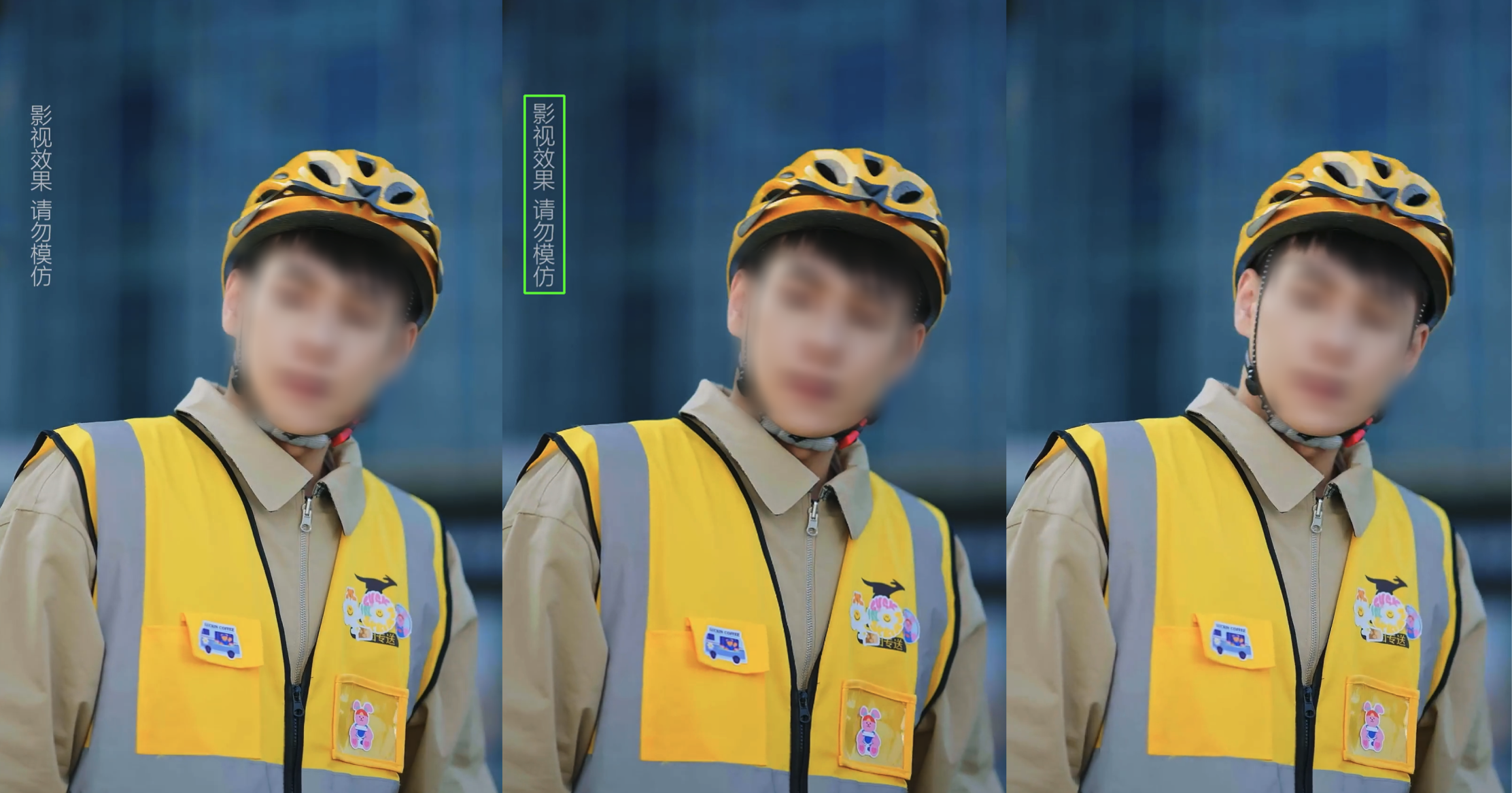 |
Configuration Guide for "Watermark Removal"
When the erasing type is Watermark removal, the following configurations are supported.
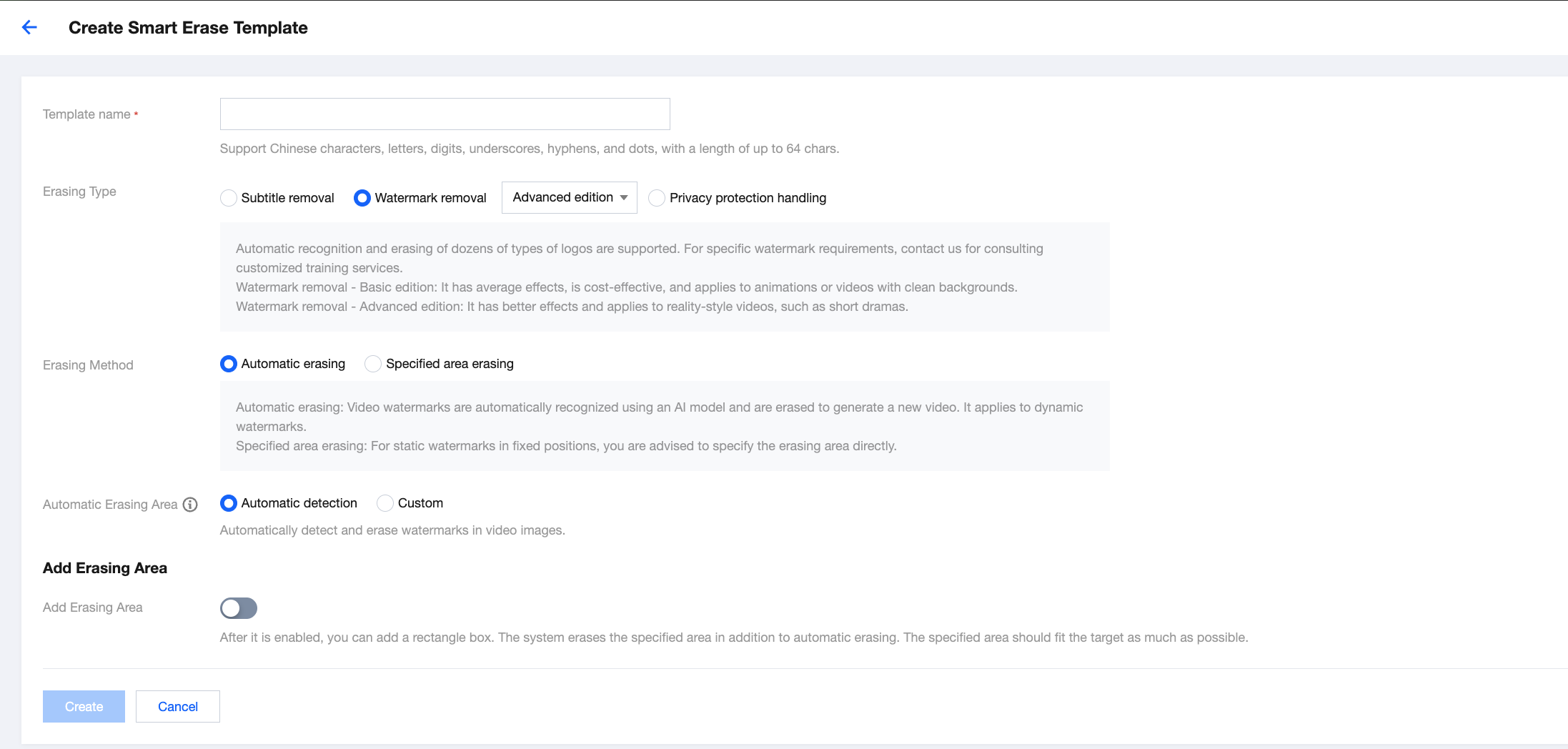
Configuration Item | Description |
Watermark Type | Logo removal means erasing graphic content such as logos, icons, and user profile photos in video images. It supports two modes: Basic Edition and Advanced Edition. Basic Edition: provides a basic blurring effect. It is cost-effective and applicable for animations or videos with a clean background. The "Smart Erase (Logo Removal - Basic Edition)" fee is charged. Advanced Edition: provides a better erasing effect. It is applicable for reality-style videos such as short dramas. The "Logo Removal - Advanced Edition" fee is charged. |
Erasing Method | Automatic erasing: AI models are used to automatically recognize and erase logos in full-screen video images, supporting both static and dynamic logos. It only supports processing logos in the MPS model library, which currently contains over ten common Internet logos. For logos not in the MPS model library, the customized training service is provided, which incurs a separate model training fee. Specified area erasing: For static logos with a fixed position, it is recommended to use specified area erasing to reduce missed or incorrect erasing issues. For logos not in the MPS model library, if the position is fixed, specified area erasing can also be used. No additional model training fee is charged. Example: 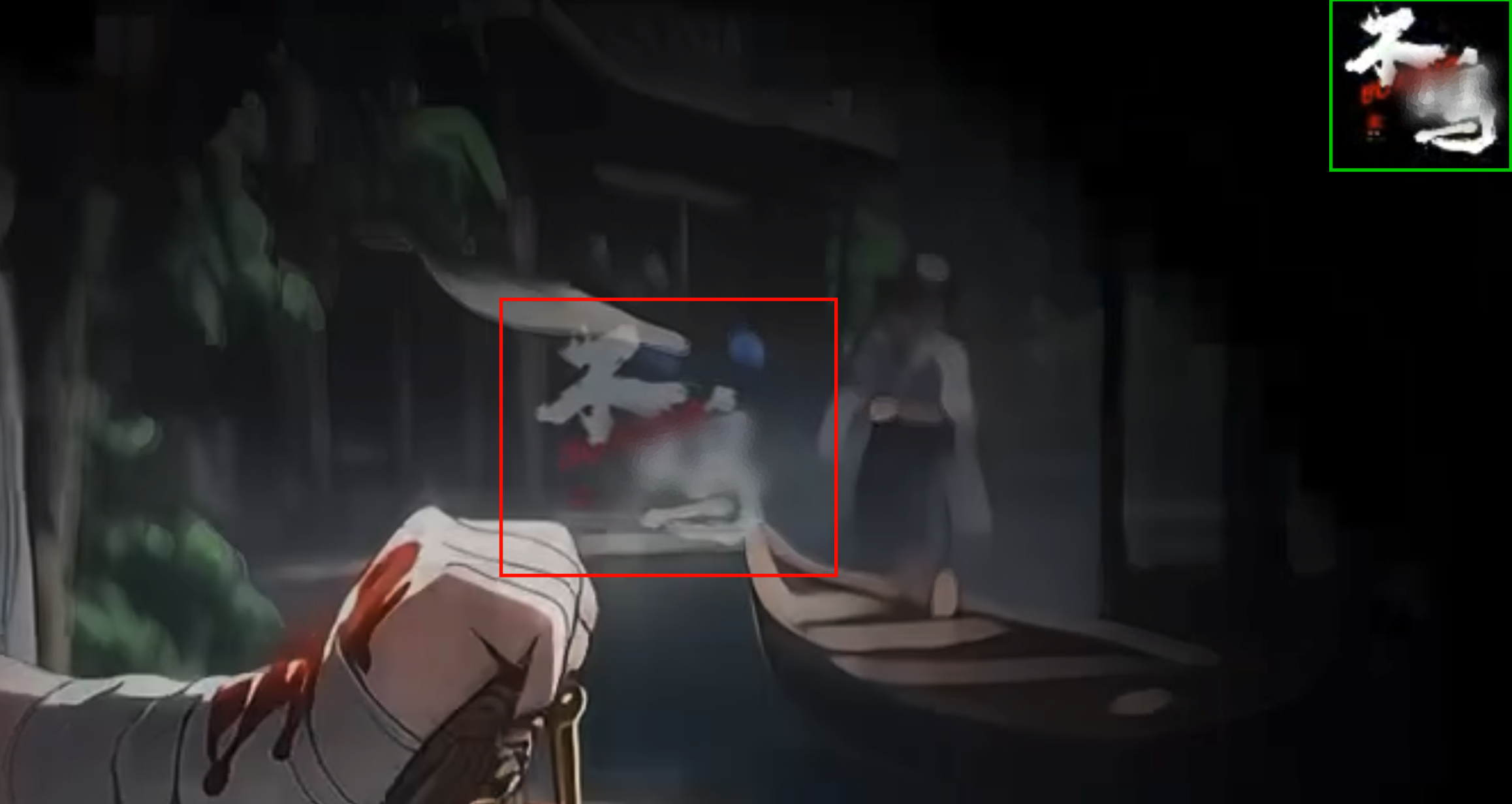 |
Erasing Method: Automatic Erasing
Configuration Item | Description |
Auto Erasing Area | Automatic detection: The system automatically detects and erases watermarks that appear in the full-screen video image. Custom: You can specify the approximate position of the logo. The system filters out logos outside this area during automatic erasing, thereby protecting other areas of the video image that do not require erasing. |
Add Erasing Area | Advanced feature. Once it is enabled, you can add rectangle boxes. The system erases watermarks in these boxes on the basis of automatic erasing. This feature is mainly used to specify fixed watermark areas for erasing to reduce missed erasing issues. Example: 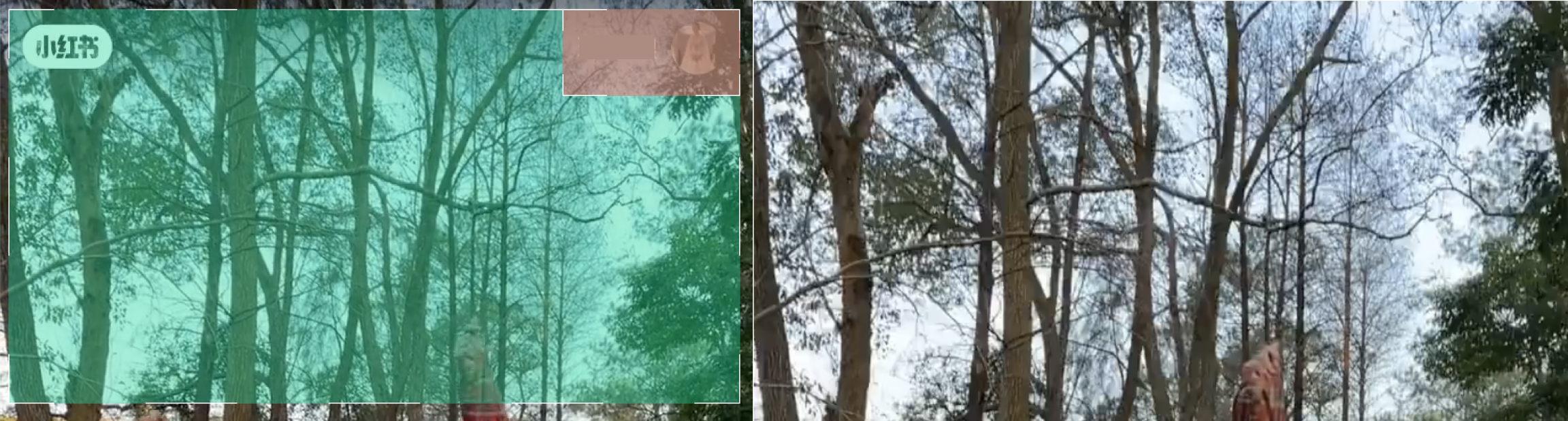 |
Erasing Method: Specified Area Erasing
For static logos in a fixed position, it is recommended to use specified area erasing to reduce missed or incorrect erasing issues.
For logos not in the MPS model library, if the position is fixed, specified area erasing can also be used. No additional model training fee is charged.
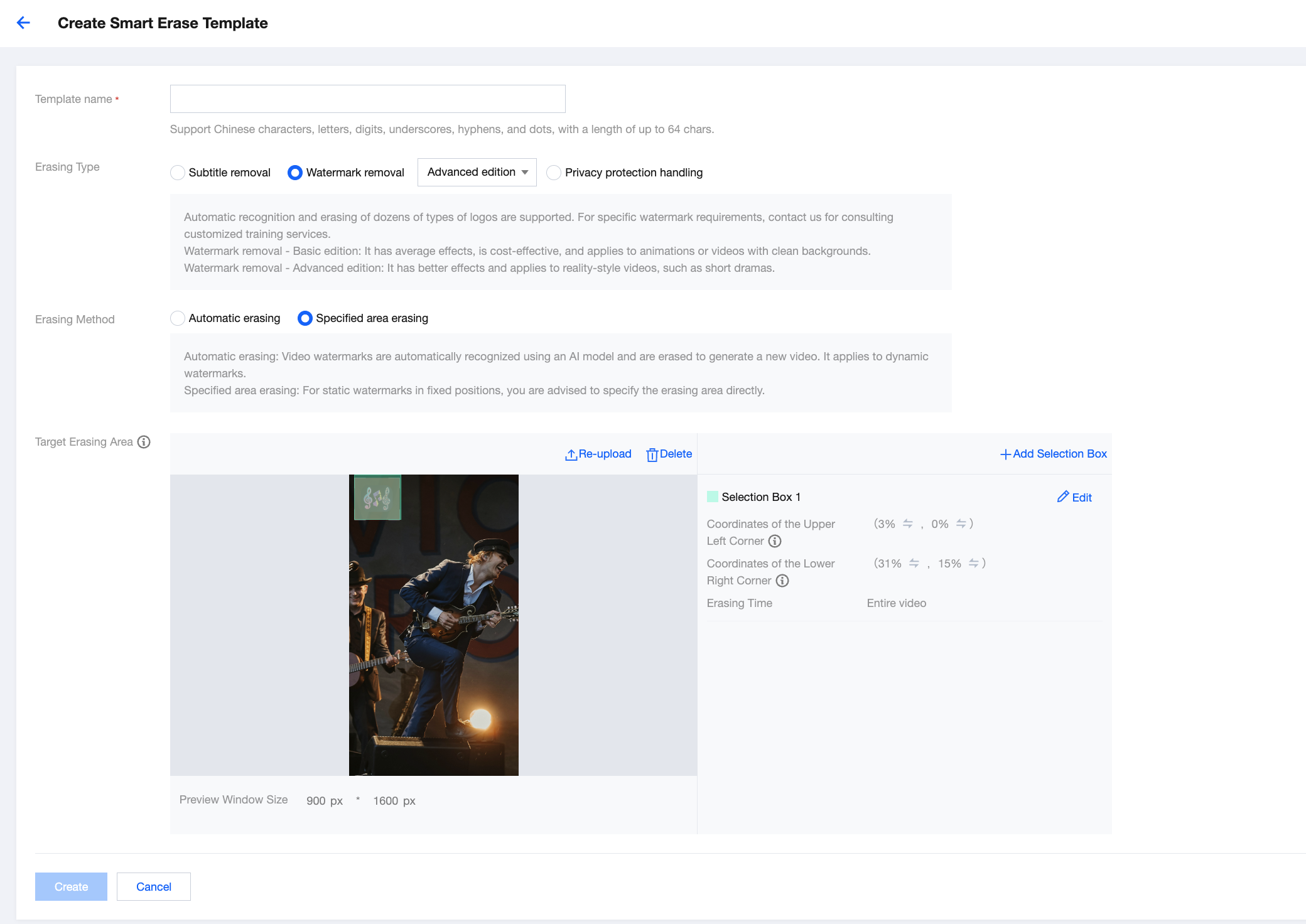
Configuration Item | Description |
Target Erasing Area | After the target erasing area is specified, the system directly erases the logo in this area and does not automatically recognize or erase logos in other areas of the video image. Please specify the complete "target erasing area". |
Configuration Guide for "Privacy Protection Processing"
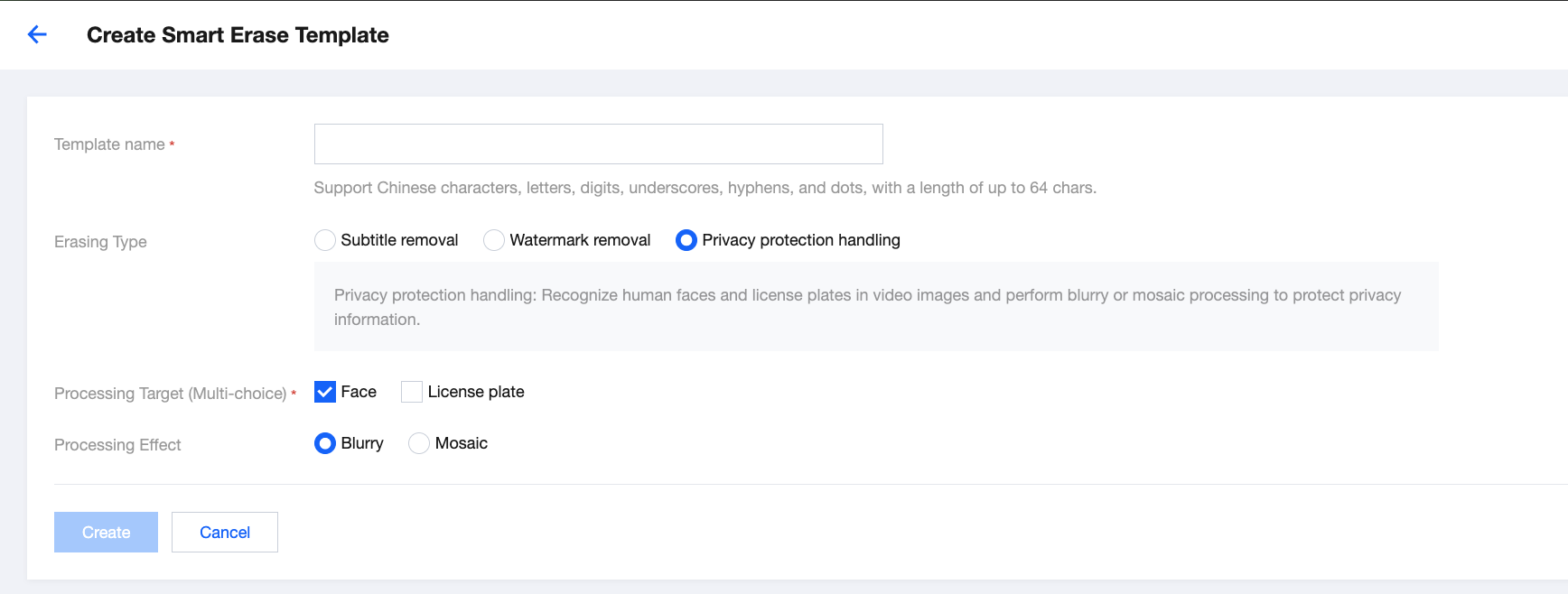
Configuration Item | Description |
Processing Target | Faces and license plates are supported. Multiple targets can be selected. |
Processing Effect | Blurring effect or mosaic effect is supported. |