The intelligent video splitting feature integrates advanced technologies such as Large Model-based video understanding, automatic speech recognition (ASR), text extraction, and person and object recognition to split long videos and mark points precisely. The system outputs split video clips along with information such as thumbnail images, start and end times, titles, and content summaries for each clip. For example, it can split a full news broadcast video into multiple individual news event videos, significantly enhancing the splitting quality for videos related to news and sports content. This feature effectively facilitates secondary content creation while greatly reducing labor and hardware costs.
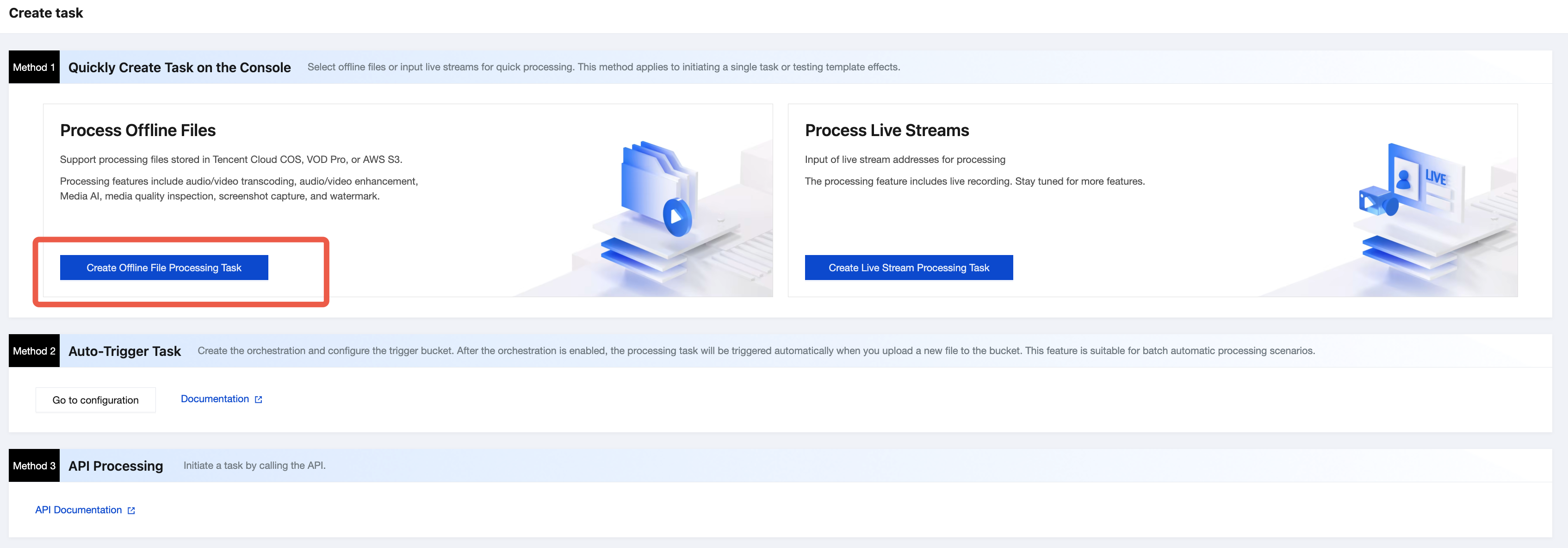
1. Log in to the Media Processing Service (MPS) console, and then click Create Task > Create Offline File Processing Task.
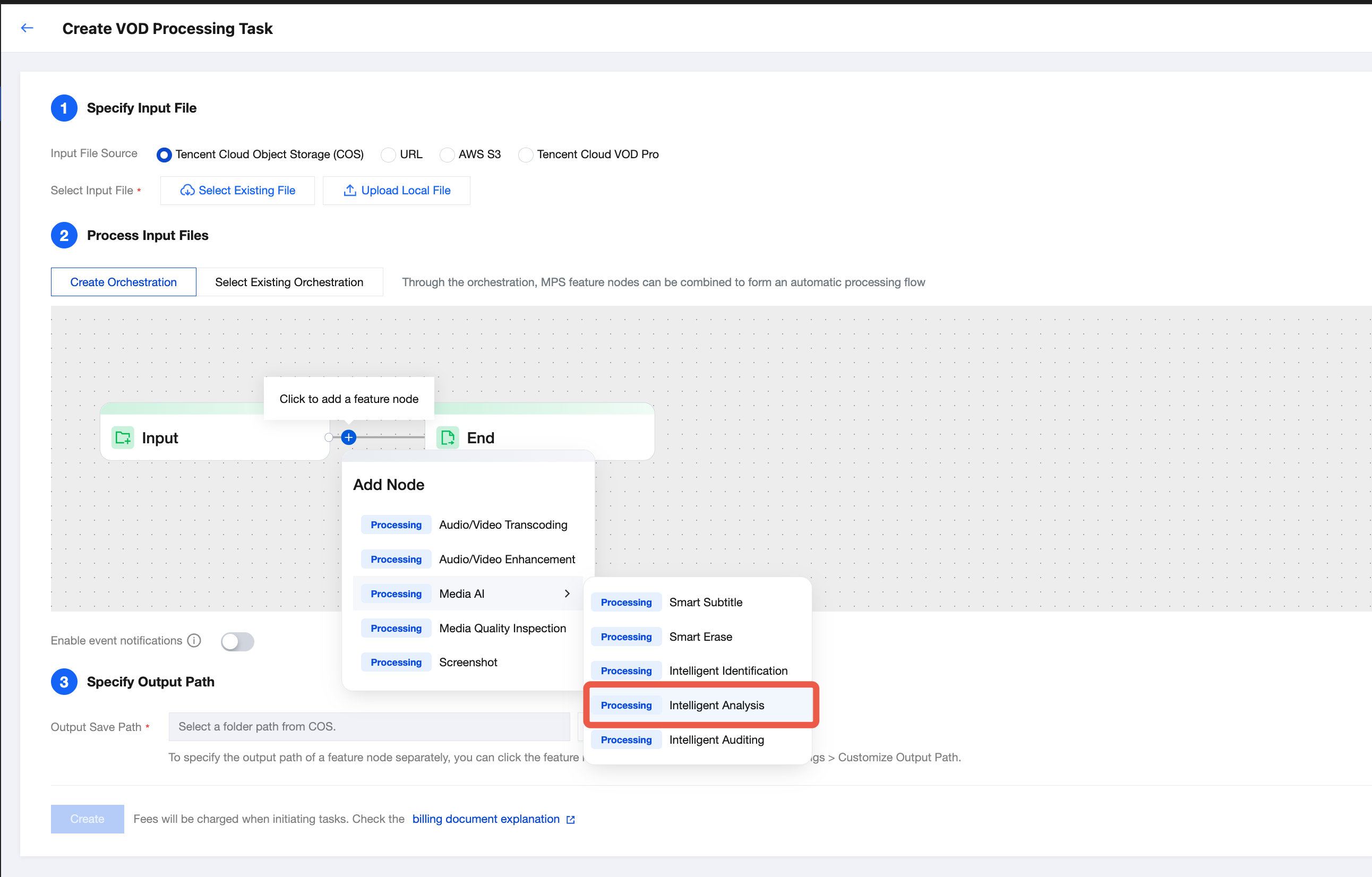
2. Select an input file path, an orchestration configuration processing flow, and an output path in sequence. In the orchestration configuration, select the Media AI - Intelligent Analysis node.
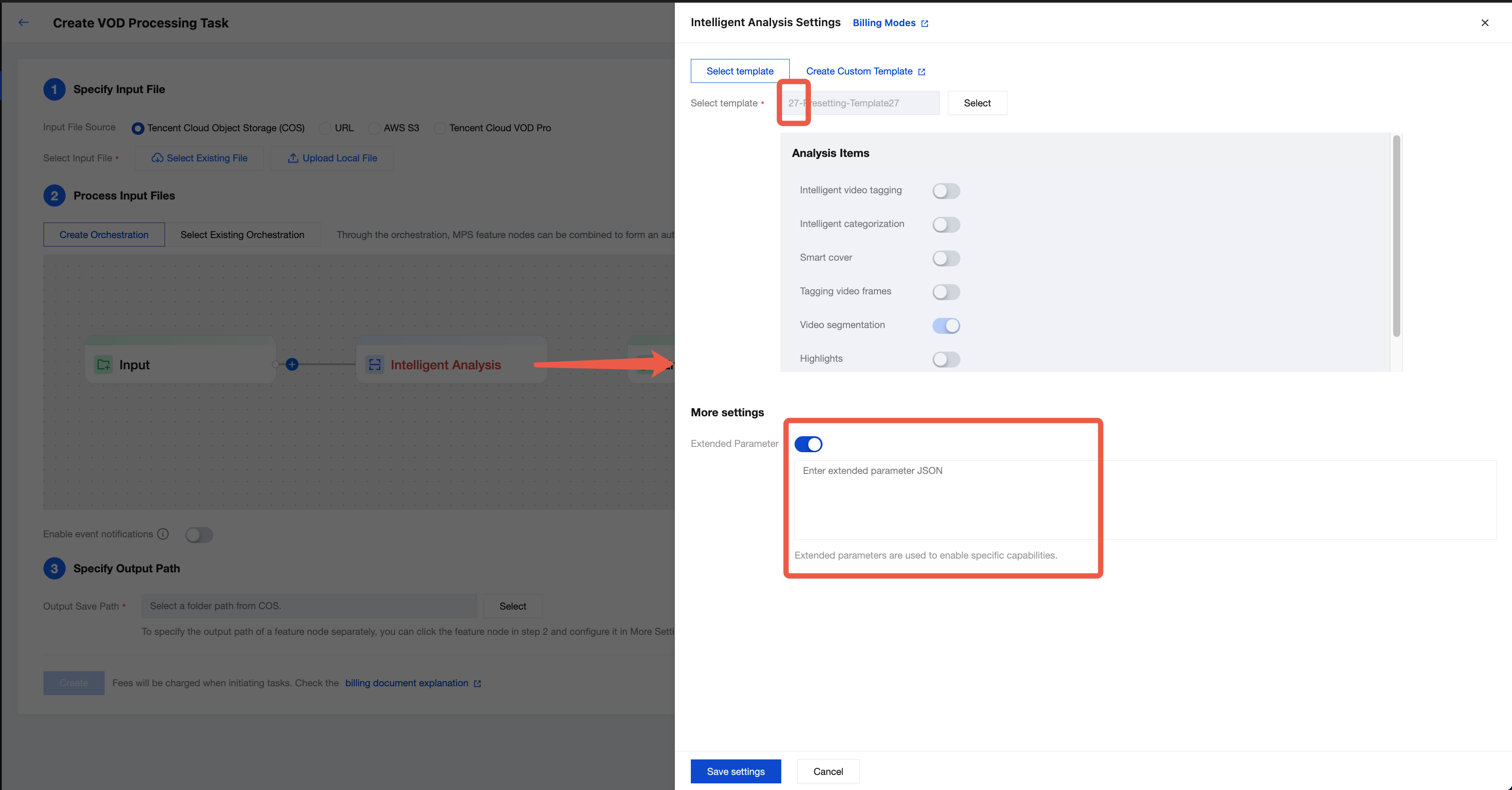
3. On the intelligent analysis settings page that pops up on the right, select Preset Intelligent Video Splitting Template (ID: 27). You can enable Extended Parameters under More Settings, and import extended parameters according to this document to specify the video splitting scenario and achieve a better splitting effect. To ensure the processing effect, it is recommended to contact us for offline confirmation of specific configurations.
Note:
The MPS console automatically escapes JSON data. Do not input escaped strings. Otherwise, the task will fail.
If no extended parameters are filled in, the default value is News Video Splitting Scenario.
4. Finally, click Create to initiate a task.
Task Initiation Method 2: Automatic Trigger
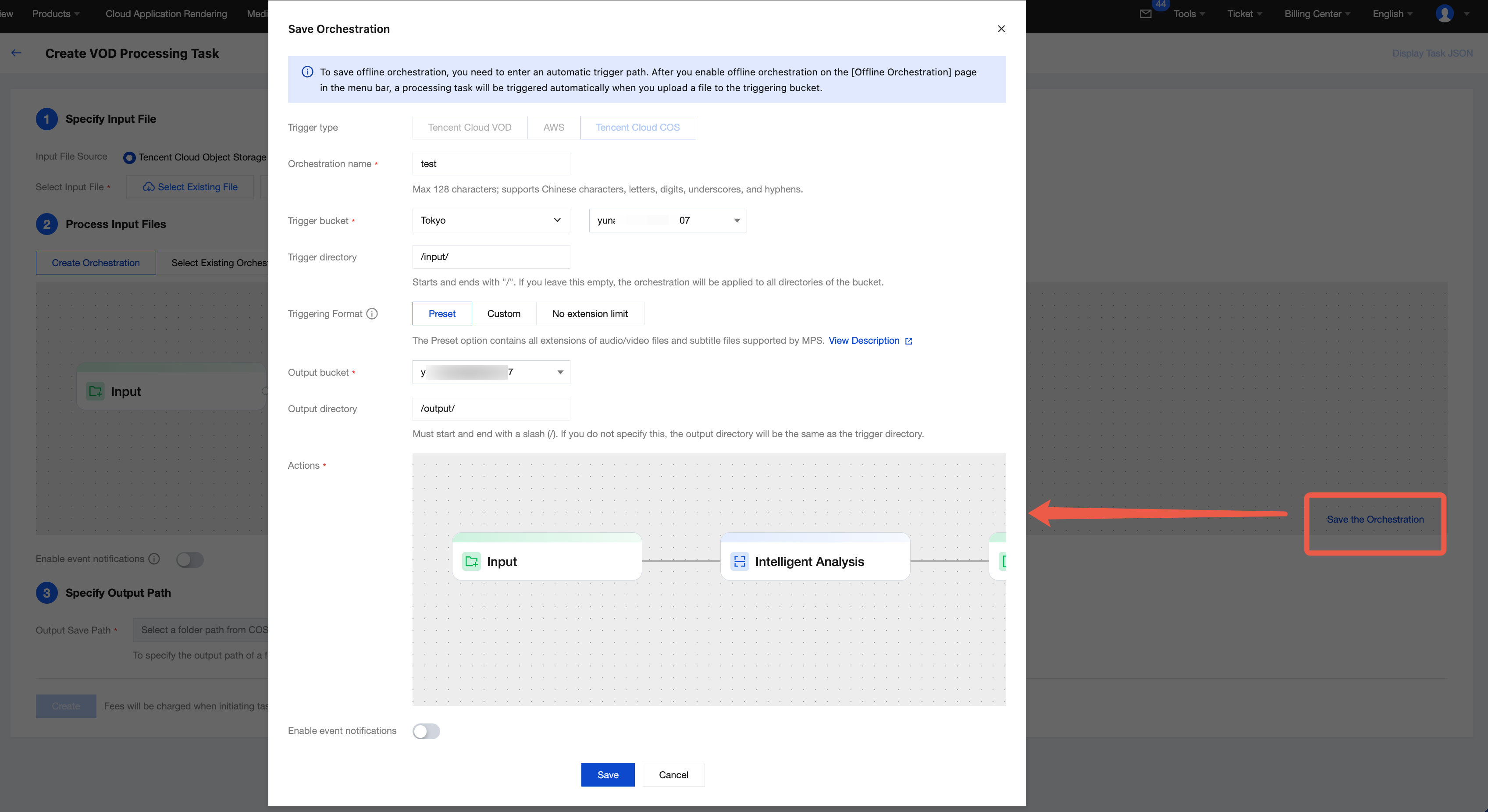
If you want to upload a video file to the Cloud Object Storage (COS) bucket and achieve automatic processing of the video using the intelligent video splitting feature according to the preset parameters, you can click Save This Orchestration when creating a task, and configure parameters such as triggering bucket and directory in the pop-up window.
Then, enter the Offline Orchestration list, find the newly created orchestration, and enable the switch in the Enabling column. Any video files added to the triggered directory subsequently will automatically initiate tasks according to the preset process and parameters of the orchestration, and the processed video files will be saved to the output path set in the orchestration configuration.
Note:
It takes 3 to 5 minutes for the orchestration to take effect after being enabled.
Task Initiation Method 3: Calling an API
If you want to initiate a task through calling the API, you can call the ProcessMedia API, select AiAnalysisTask, set Definition to 27 (preset intelligent video splitting template), and fill in extended parameters in the ExtendedParameter field to specify the video splitting scenario and achieve better effects. For parameter value details, see Extended Parameter Description below. An example of the input parameters in the JSON format for the ProcessMedia API is as follows:
{
"InputInfo":{//Input video path. Replace it with the path of your original video.
"OutputStorage":{//Output Cloud Object Storage (COS) bucket. Replace it.
"Type":"COS",
"CosOutputStorage":{
"Bucket":"test",
"Region":"ap-nanjing"
}
},
"OutputDir":"/mps_test/output/",//Output folder path. Replace it.
"AiAnalysisTask":{
"Definition":27,//Preset template ID for intelligent video splitting. Enter 27.
"ExtendedParameter":"{\"des\":{\"split\":{\"method\":\"llm\",\"model\":\"deepseek-v3\",\"max_split_time_sec\":100,\"extend_prompt\":\"This video is for an online education scenario and needs to be segmented according to the teacher's explanation of knowledge points.\"},\"need_ocr\":true,\"text_requirement\":\"The summary cannot exceed 40 characters.\",\"dstlang\":\"zh\"},\"strip\":{\"type\":\"content\"}}"//The extended parameters should be replaced based on the selected video splitting scenario. For parameter value details, see the integration guide document.
},
"TaskNotifyConfig":{//Event callback notification configuration, which is optional.
"NotifyType":"URL",
"NotifyUrl":"http://www.qq.com/callback"
}
}
It is recommended that you use API Explorer for rapid verification. You can copy the above JSON data to the JSON mode in API Explorer, switch to the Form mode for automatic parsing, adjust required parameters such as input and output paths, and then click Initiate Call.
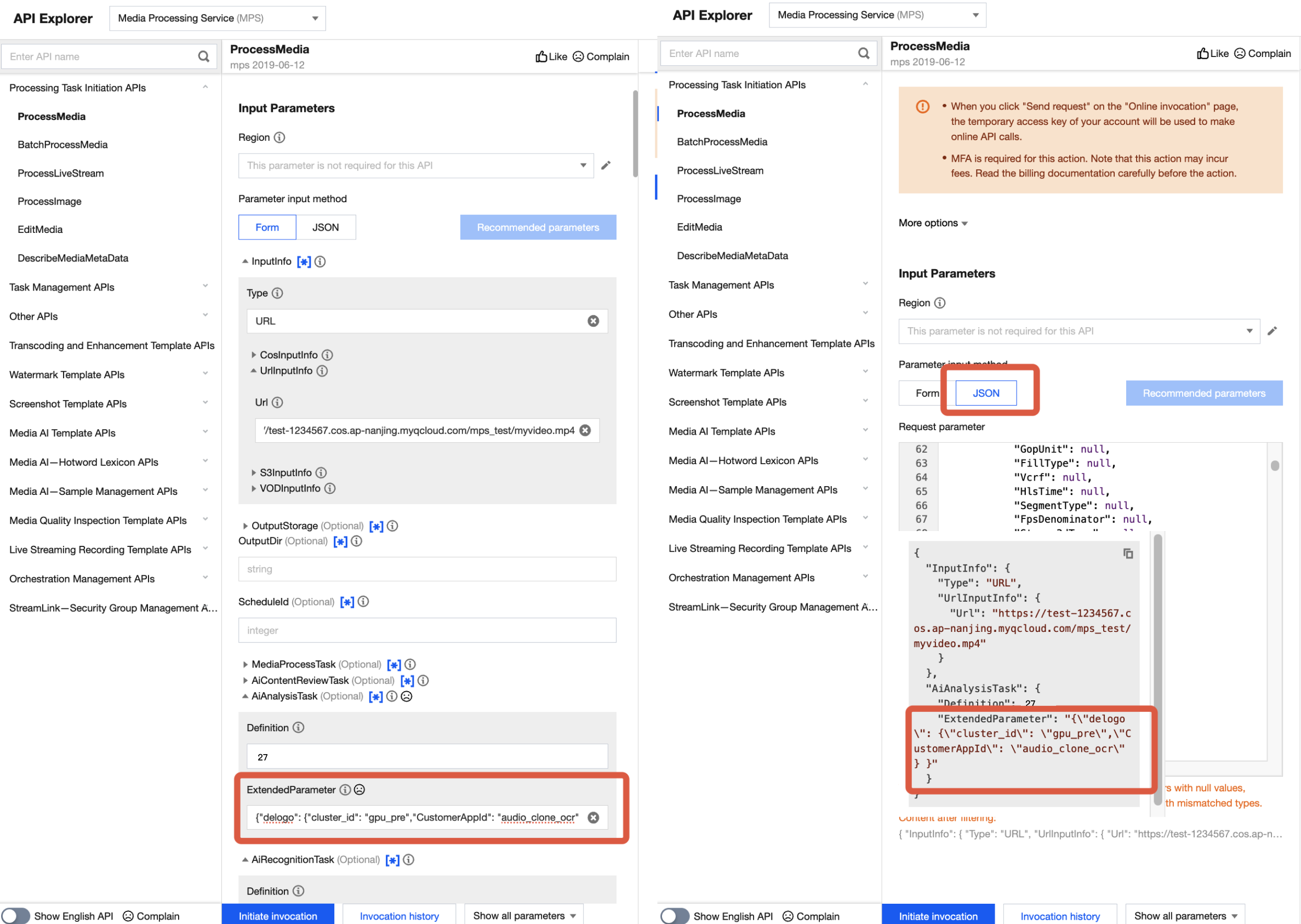
In API Explorer, the positions of ExtendedParameter in Form and JSON input modes are as follows:
Note:
When you fill in values in the ExtendedParameter field in the Form mode of API Explorer, you need to directly input JSON data instead of escaping it to a string. However, when you use the JSON mode of API Explorer or directly use the API, you should input an escaped string.
In the Form mode of API Explorer, input JSON data in the ExtendedParameter field. Example:
{"des":{"split":{"method":"llm","model":"deepseek-v3","max_split_time_sec":100,"extend_prompt":"This video is for an online education scenario and needs to be segmented according to the teacher's explanation of knowledge points."},"need_ocr":true,"text_requirement":"The summary cannot exceed 40 characters.","dstlang":"zh"},"strip":{"type":"content"}}
In the JSON mode of API Explorer, input an escaped string in the ExtendedParameter field. Example:
{\"des\":{\"split\":{\"method\":\"llm\",\"model\":\"deepseek-v3\",\"max_split_time_sec\":100,\"extend_prompt\":\"This video is for an online education scenario and needs to be segmented according to the teacher's explanation of knowledge points.\"},\"need_ocr\":true,\"text_requirement\":\"The summary cannot exceed 40 characters.\",\"dstlang\":\"zh\"},\"strip\":{\"type\":\"content\"}}
Extended Parameter Description (Used for Specified Video Splitting Scenarios)
Input extended parameters to specify different video splitting scenarios and obtain better effects.
Scenario 1: LLM-based Video Splitting
Feature Description
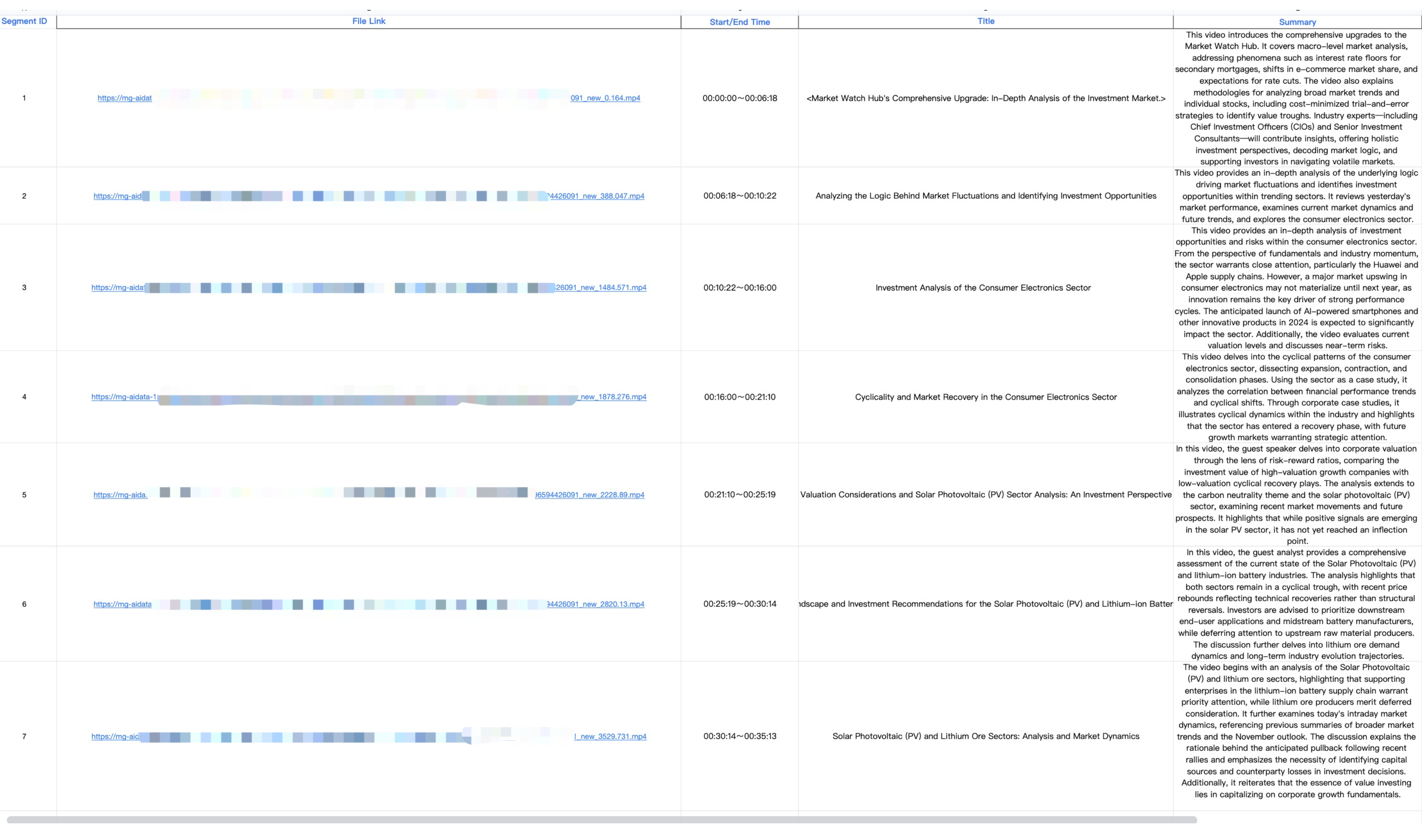
After the speech and on-screen text content of the video are recognized, text is extracted, and the video is split based on LLMs. The output content includes split video clips, along with information such as thumbnail images, start and end times, titles, and summaries for each clip.
Parameters
Fill in the following parameters in the ExtendedParameter field. For specific parameter details, it is recommended to confirm them offline.
{
"des":{
"split":{
"method":"llm",
"model":"deepseek-v3",
"max_split_time_sec":100,
"extend_prompt":"This video is for a medical scenario and needs to be segmented according to the medical knowledge points."
See the table below for optional parameters of the "des" part.
Parameters
Required
Type
Description
split.method
No
string
Video segmentation method. llm indicates (Large Language Model) LLM-based segmentation; nlp indicates traditional NLP-based segmentation. The default value is llm.
split.model
No
string
Segmentation LLM. Valid values: hunyuan; deepseek-v3; deepseek-r1. The default value is deepseek-v3.
split.max_split_time_sec
No
int
Forcibly specifies the maximum time for segmentation in the unit of seconds. It is recommended to use this parameter when necessary, because it may affect the segmentation effect. The default value is 3600.
split.extend_prompt
No
string
Adds prompts for the LLM-based video segmentation task, such as "this video is for online education and needs to be segmented according to the related knowledge points". It is recommended to leave this parameter unspecified for testing first, and add prompts later if the results cannot meet expectations.
need_ocr
No
bool
Whether to use optical character recognition (OCR) to assist segmentation. true indicates enabled. The default value is false.
When it is not enabled, the system only recognizes the video speech content to assist segmentation. When it is enabled, the system also recognizes the text content in video images to assist segmentation.
text_requirement
No
string
Adds prompts for the LLM-based summary task. For example, the summary cannot exceed 40 characters.
dstlang
No
string
Language of the video. This parameter is used for ASR and specifying the language of the summary-related results. The default value is "zh".
"zh": Chinese.
"en": English.
Effect Examples
Output examples after LLM-based video splitting
Scenario 2: Shot-based Video Splitting
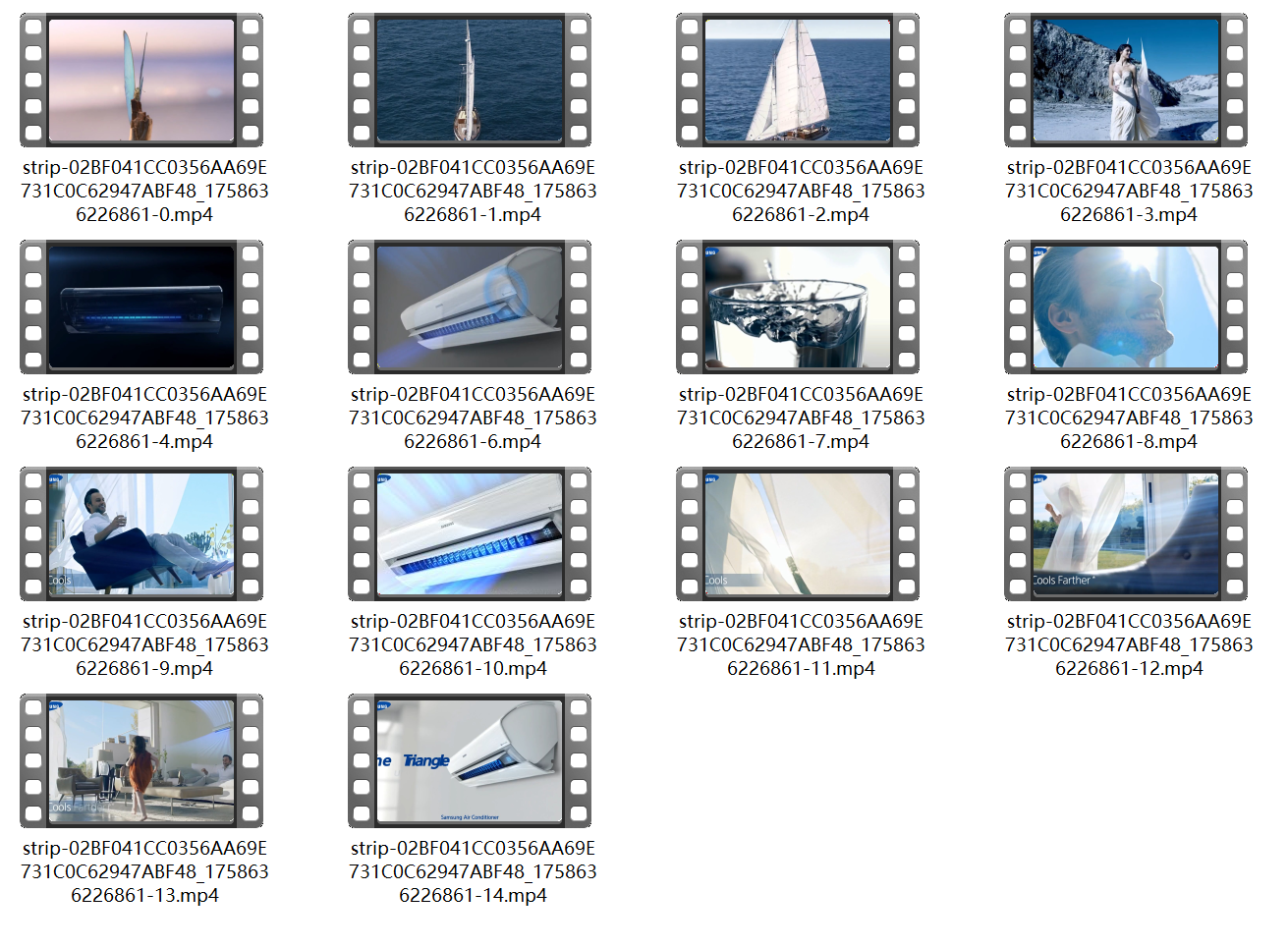
Split the video based on changes in shots or scenarios. The output content includes split video clips, along with thumbnail images and start and end times for each clip.
Parameters
Fill in the following parameter in the ExtendedParameter field.
{"strip":{"type":"screen_strip"}}
Effect Examples
Commercial case after shot-based video splitting
Scenario 3: News Video Splitting
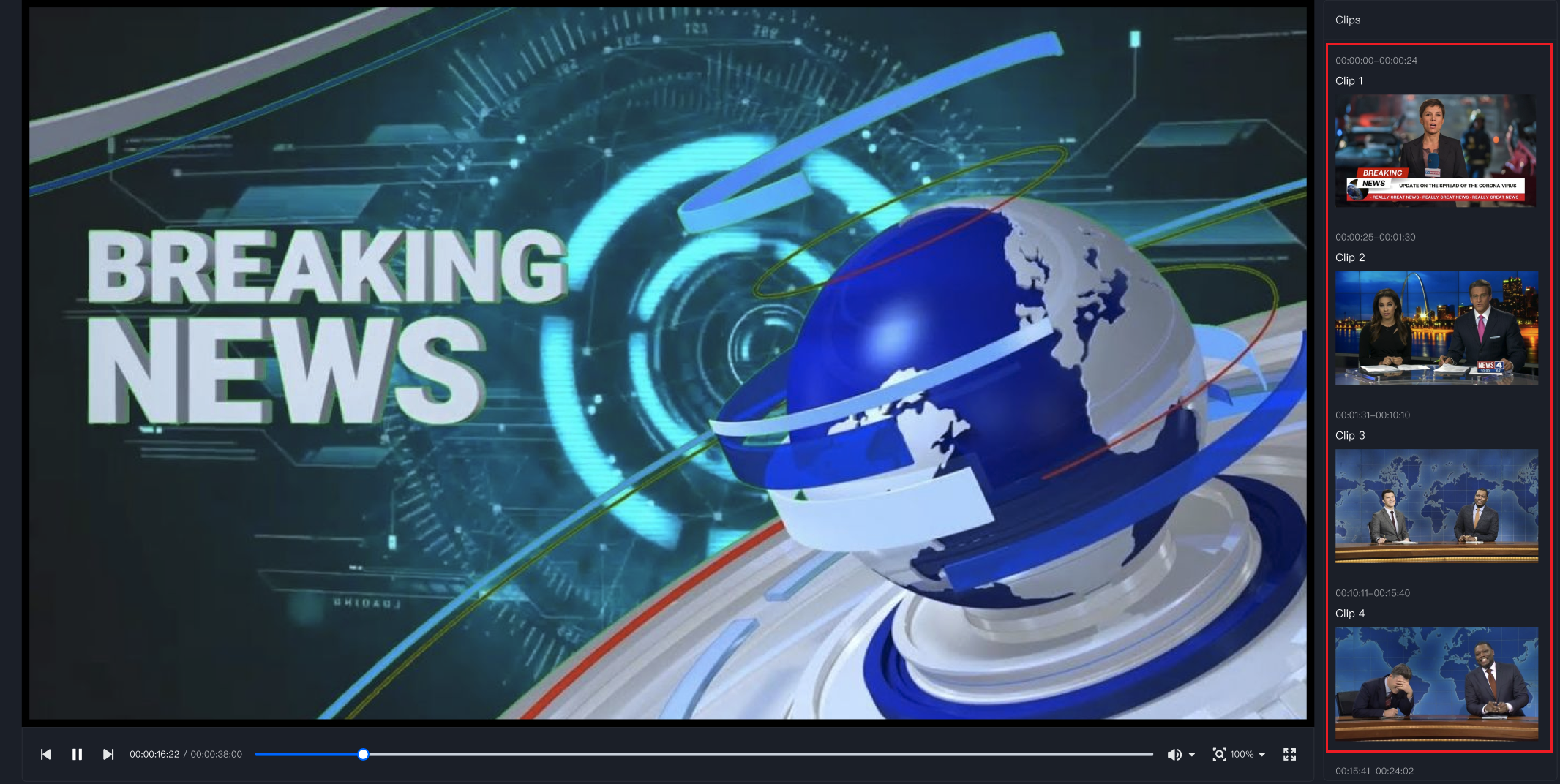
Locate and identify features such as transitions, filters, and "news flash" in news videos to achieve effective news video splitting. The output content includes the split video clips, along with thumbnail images and start and end times for each clip.
Parameters
Fill in the following parameter in the ExtendedParameter field.
{"strip":{"type":"news"}}
Effect Examples
The original video is about 30 minutes, and the result after video splitting is in the red box. The news event video is divided into multiple short videos of several minutes each.
Scenario 4: Target-based Video Splitting
Feature Description
It is supported to specify a target object or person to identify keyframes in the video where the target appears and split the corresponding video clips. For example, in surveillance videos, only the video images containing the person are extracted. The output content includes the split video clips, along with thumbnail images and start and end times for each clip.
Parameters
Fill in the following parameters in the ExtendedParameter field. For specific objects that need to be recognized, it is recommended to confirm them offline.
A customer case: Extract video images from surveillance videos where people appear, thereby reducing storage costs.
Querying the Task Result
The intelligent video splitting task will output information such as processed segmented video files and thumbnail images, which are saved in the output path configured for the task.
Querying the Result in the Console
1. You can check task status on the task management page in the console. When the subtask status is "successful".
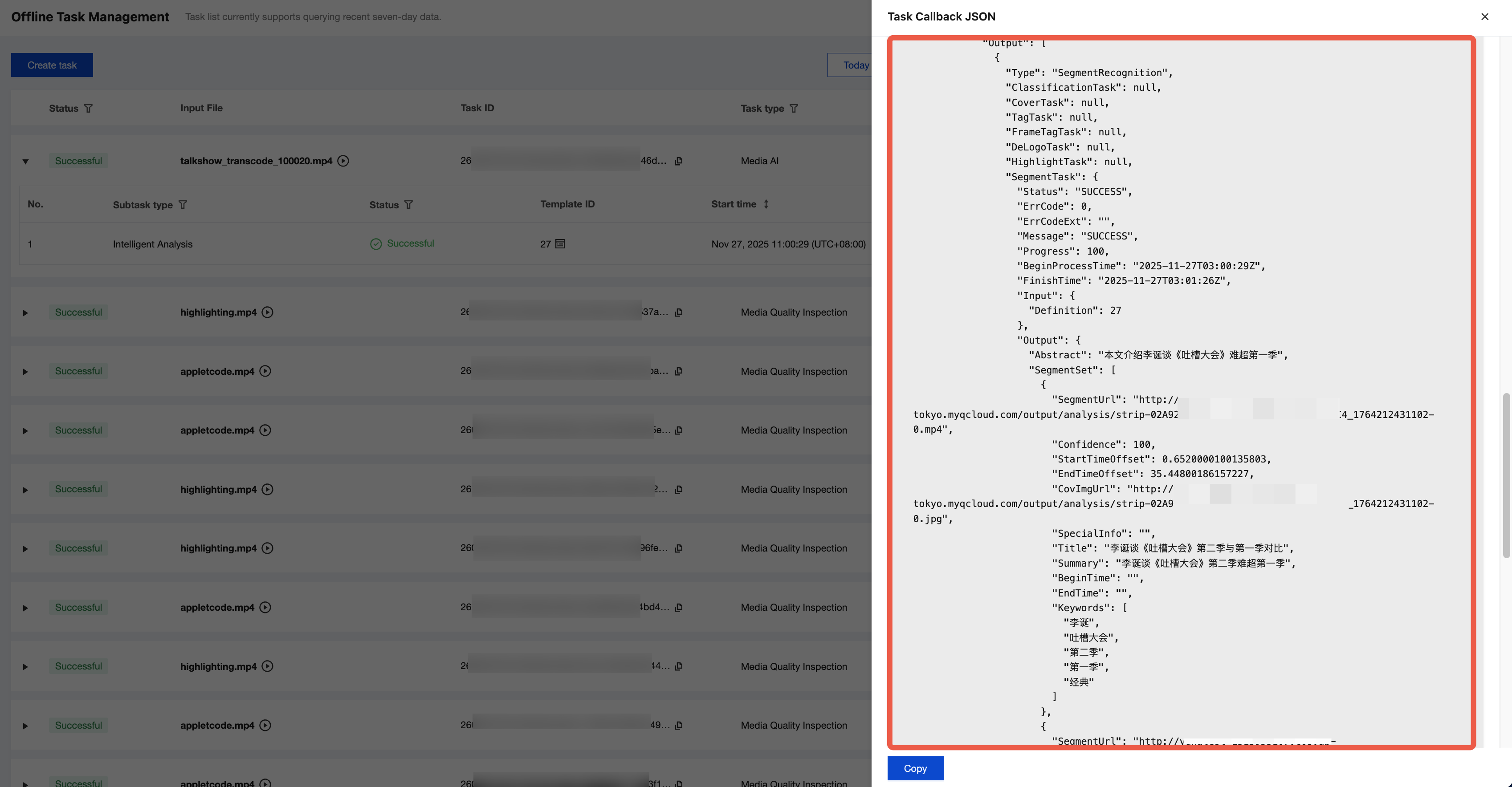
2. Click Callback JSON, and then you can find the output result and the output file path in the output message:
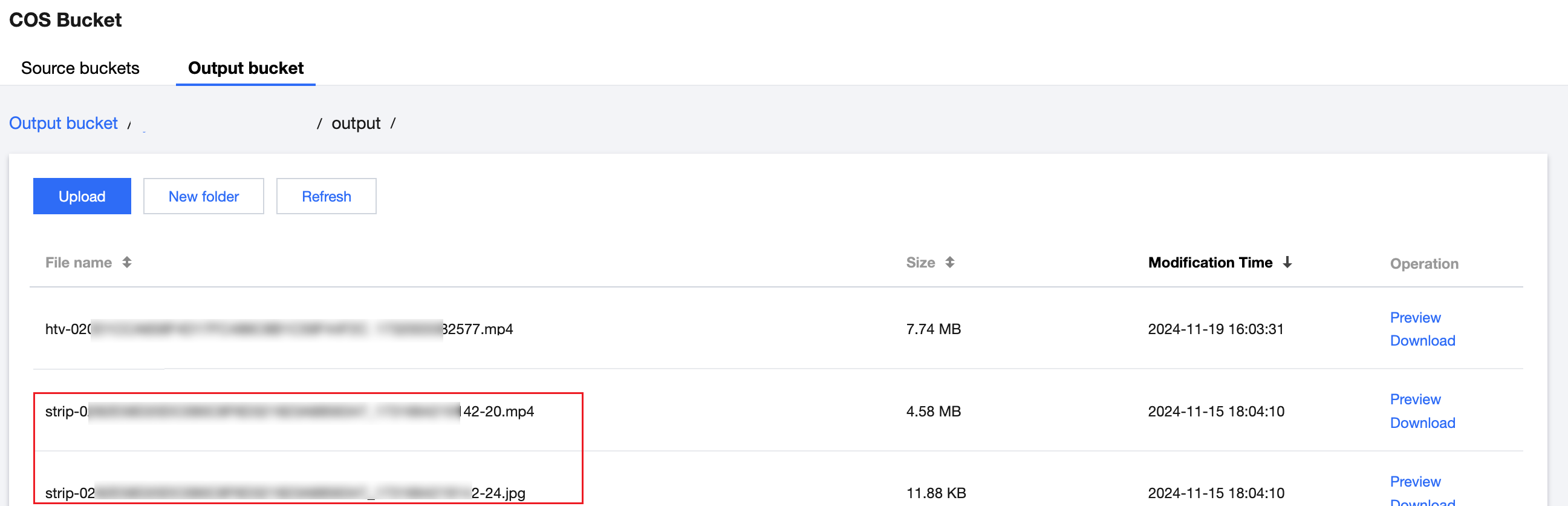
3. If you use COS as the output path, you can log in to the MPS console, go to the COS Bucket page, and click the Output Bucket tab to find your output directory. The files starting with strip- under the directory are the output files (segmented videos and thumbnail images) of intelligent video splitting.
Note:
Text content, such as titles and summaries, is not output to the bucket. It should be queried through event callback or APIs.
Event Notification Callback
When you use ProcessMedia to initiate an MPS task, you can configure the event callback through the TaskNotifyConfig parameter. After the task processing is completed, the task result will be called back through the configured callback information. You can parse the event notification result through ParseNotification.
Querying the Task Result by Calling the API
When you use ProcessMedia to initiate an MPS task, a task ID (TaskId) will be returned, such as 24000022-WorkflowTask-b20a8exxxxxxx1tt110253 and 24000022-ScheduleTask-774f101xxxxxxx1tt110253. Call the DescribeTaskDetail API and enter the task ID to obtain the task result. You need to parse the WorkflowTask ->AiAnalysisResultSet field to obtain the task result.
Processing Live Streams
Task Initiation Method: Initiating a Task Through an API
The intelligent video splitting task only supports initiating a live stream processing task through an API.
ExtendedParameter is used to specify the video splitting scenario and achieve better effects. For parameter values, see Extended Parameter Description above. Example of the input parameters in the JSON format:
Note:
Live stream currently supports news video splitting and NLP-based video splitting scenarios. The target-based splitting scenario is not supported currently.
{
"Url":"http://www.abc.com/abc.m3u8",
"TaskNotifyConfig":{
"NotifyType":"URL",
"NotifyUrl":"http://www.qq.com/callback"
},
"OutputStorage":{
"Type":"COS",
"CosOutputStorage":{
"Bucket":"mybucket",
"Region":"ap-guangzhou"
}
},
"OutputDir":"/path/to/output/",
"AiAnalysisTask":{
"Definition":27,
"ExtendedParameter":"{\"des\":{\"split\":{\"method\":\"llm\",\"model\":\"deepseek-v3\",\"max_split_time_sec\":100,\"extend_prompt\":\"This video is for an online education scenario and needs to be segmented according to the teacher's explanation of knowledge points.\"},\"need_ocr\":true,\"text_requirement\":\"The summary cannot exceed 40 characters.\",\"dstlang\":\"zh\"},\"strip\":{\"type\":\"content\"}}"
}
}
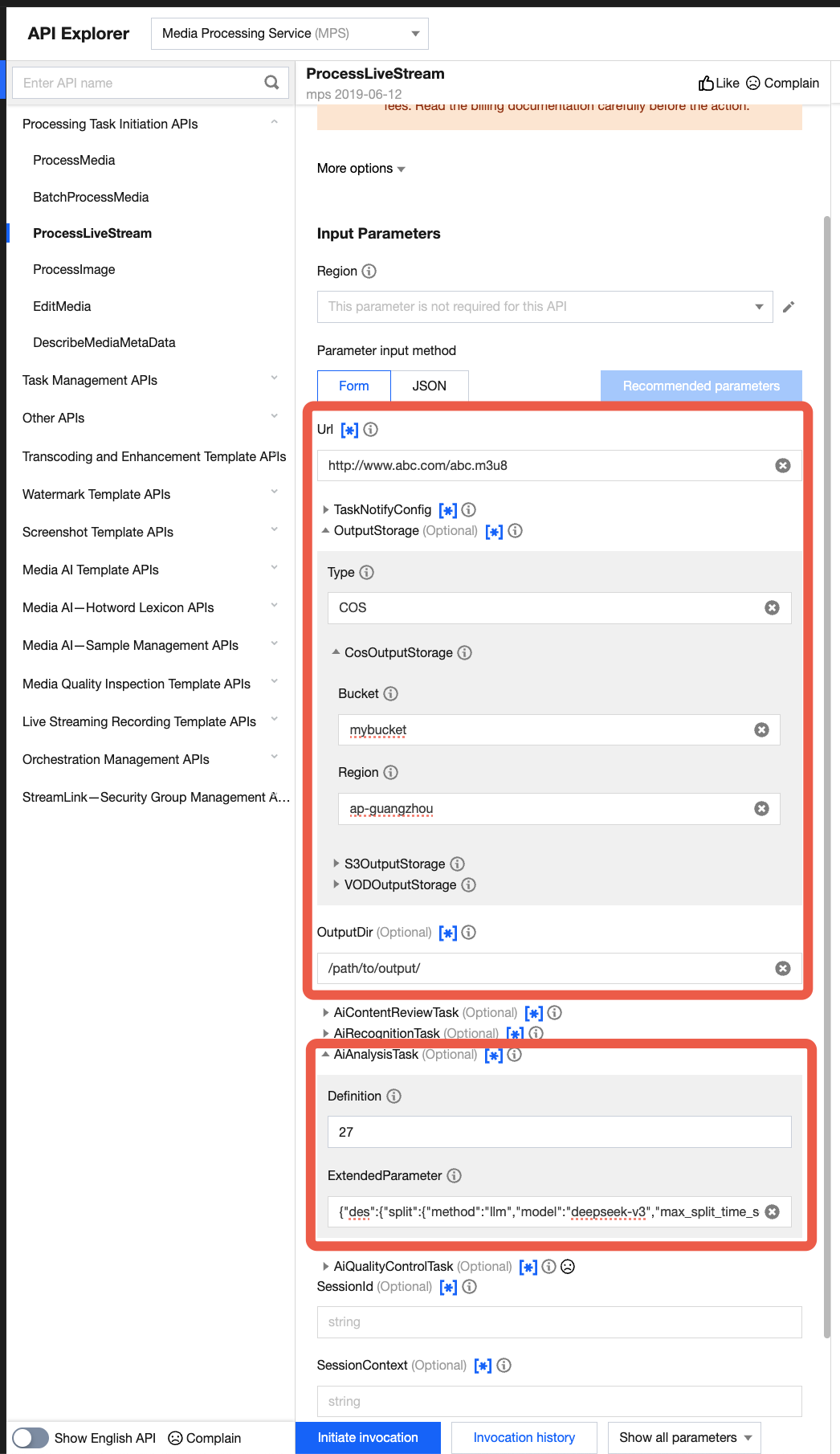
Quick Verification Through the API Explorer
It is recommended that you use API Explorer for quick verification. You can go to the page to fill in the related parameters, and then initiate an online API call.
Note:
The API Explorer can automatically escape JSON data to a string. Fill in the corresponding JSON data directly in the ExtendedParameter field without the need to escape it to a string.
Querying the Task Result
Receiving task callback: When using ProcessLiveStream to initiate an MPS task, you can configure callback information through the TaskNotifyConfig parameter. During the processing of live streams, task results are reported in real time through the configured callback information. You can see Processing Results of Parsing Live Streams to parse the AiAnalysisResultInfo field to obtain the task result.