The video evaluation feature currently supports video quality evaluation and BD-rate evaluation. You can create evaluation tasks on the console video evaluation page, compare video transcoding quality and transcoding template effects, and support the presentation of visualized data results. Refer to Billing Overview for the pricing standards of related features.
Use Case
Transcoded Video Quality Evaluation
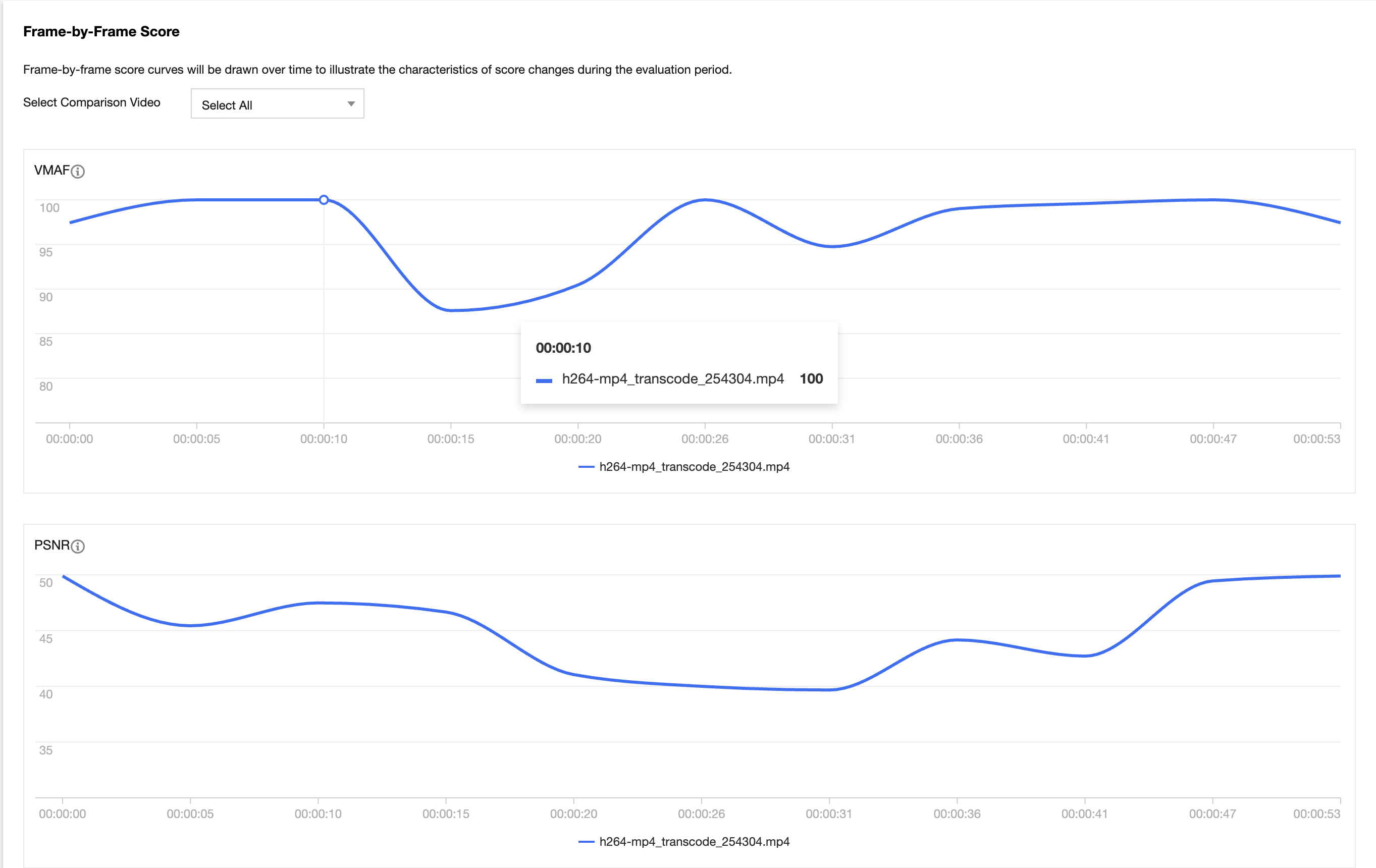
Choose the original video and comparison video, and evaluate the video quality score of the comparison video relative to the original video through PSNR, SSIM, and VMAF evaluation. Video sources can be selected from COS Storage, accessed via URL, or uploaded locally. The evaluation results can generate an overall evaluation score, a frame-by-frame score line chart, and a screenshot of the frame with the worst quality.
Instructions
1. Creating an Evaluation Task
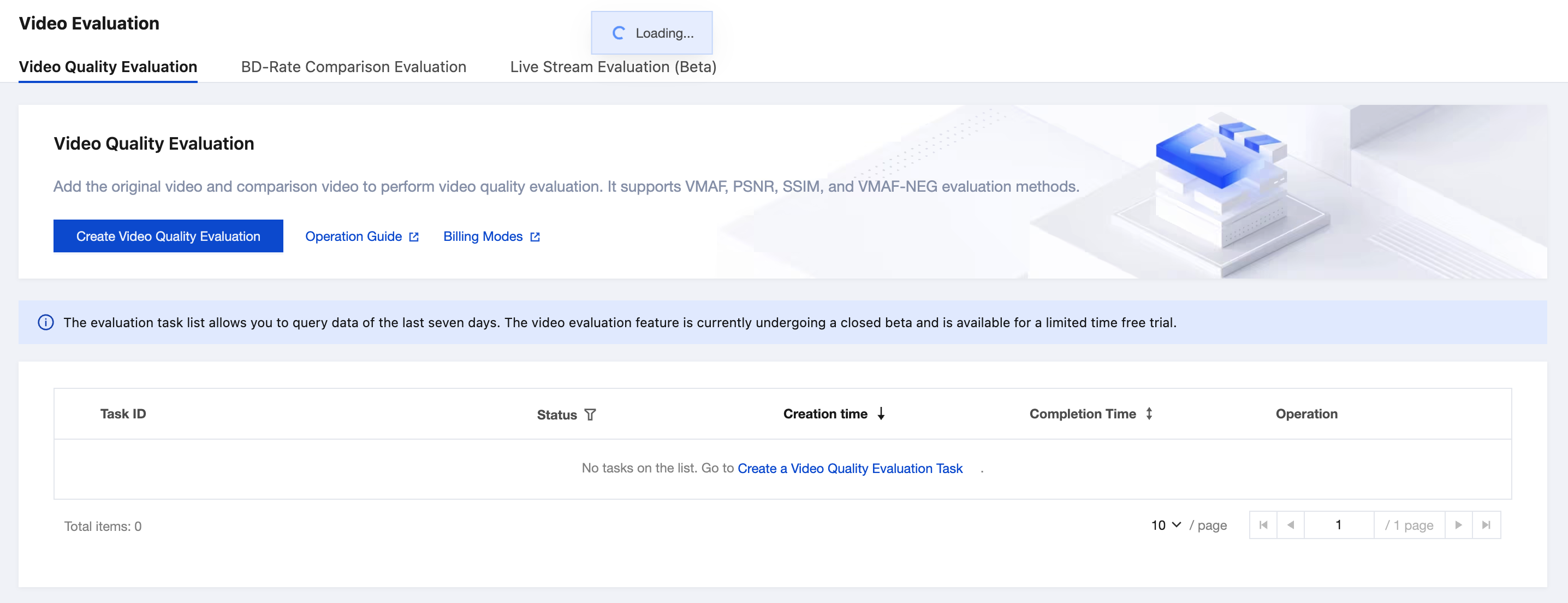
Go to the Media Processing Service console's Video Evaluation page and click to Create Video Quality Evaluation.
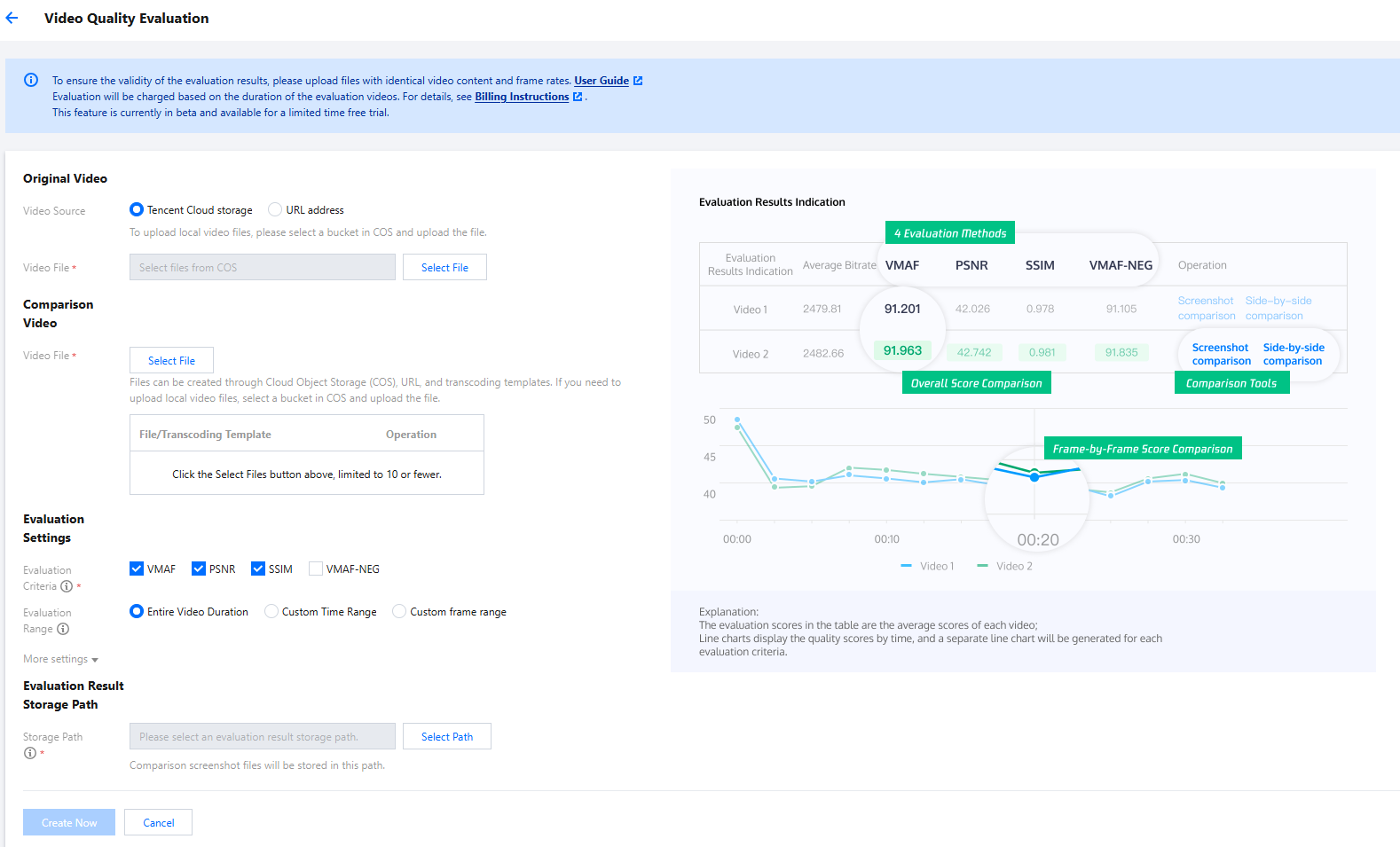
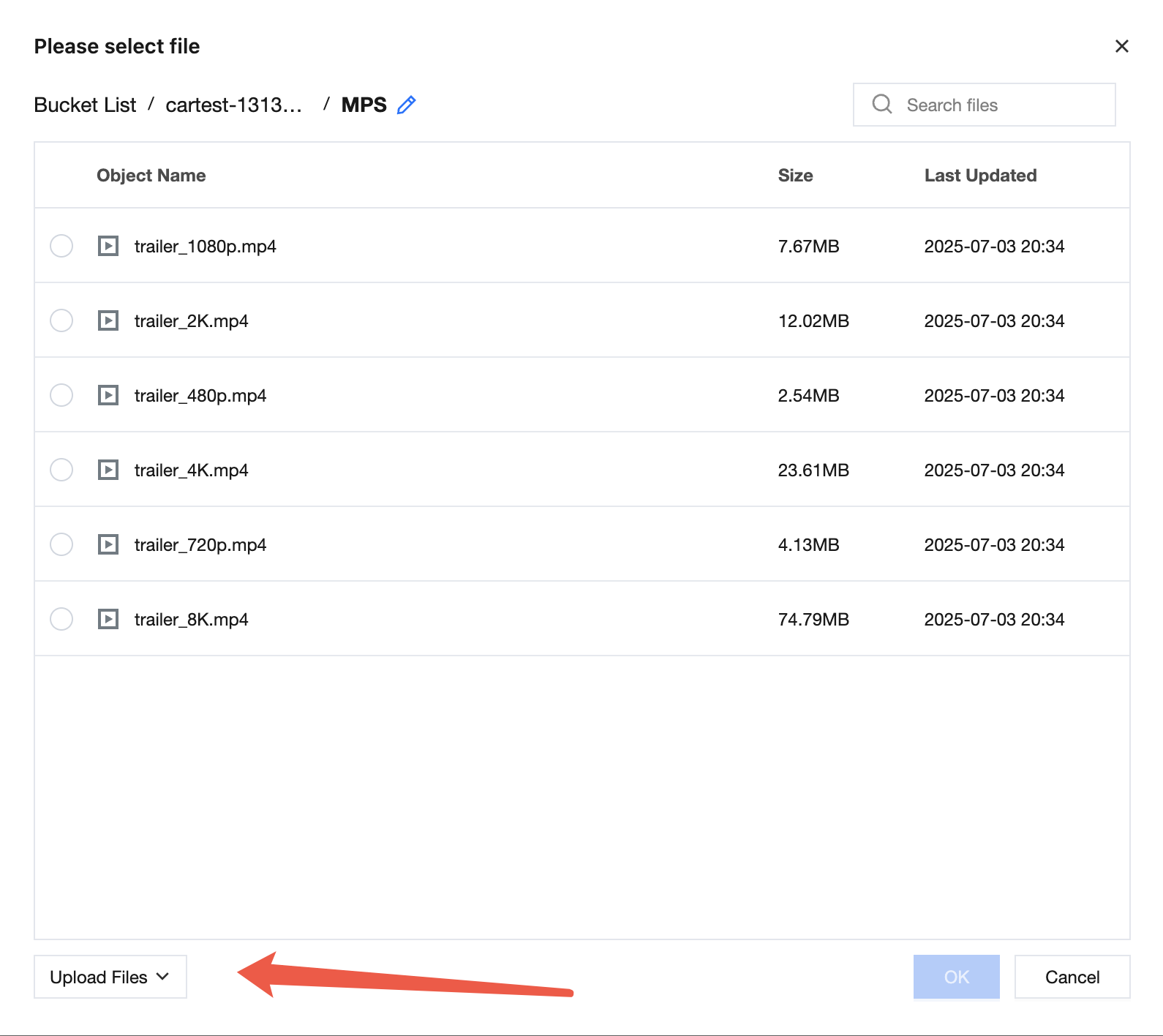
1.1 Choose the original video; this video will be used as the reference video during the evaluation. You can select video files from COS Storage, access videos via URL, or if using a local video file, please upload the file to COS and then select it through the COS.
Note:
The frame rate of the original video must match that of the comparison video because the evaluation is conducted on a frame-by-frame basis. If the frame rates differ, the content of the frames being evaluated will not be consistent and the results will not be relevant;
Users who choose to obtain videos via URL must ensure the URL address is valid and allows file content to be downloaded via the public network; otherwise, video access will fail.
Uploading local files to COS Storage will incur related storage costs.
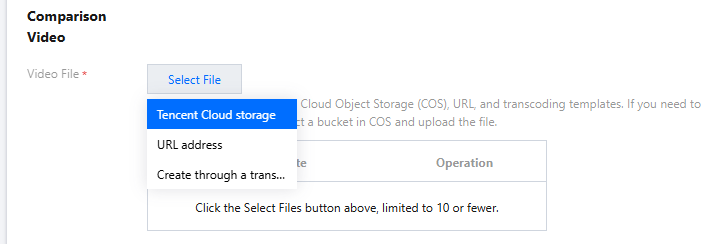
1.2 When selecting comparison videos, each one will be compared against the original video during evaluation, with a maximum of 10 comparison videos allowed per evaluation. Comparison videos can be selected from COS Storage or accessed via URL. If using a local video file, please upload the file to COS and then select it through the COS.
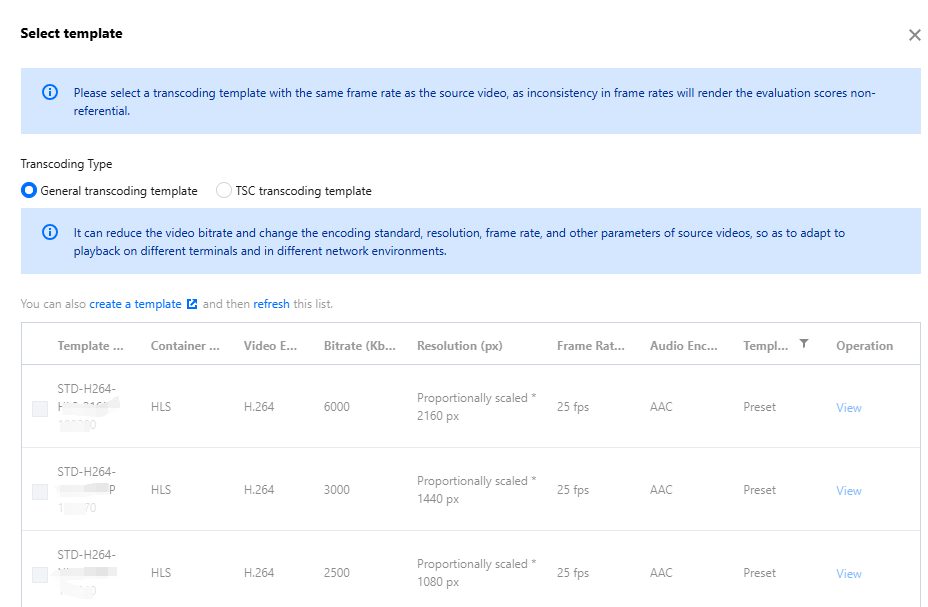
Comparison videos can also be generated by initiating a transcoding task. Users can choose a transcoding template to generate videos by initiating transcoding tasks.
Note:
If you choose to generate videos via a transcoding template, transcoding fees will be charged according to the transcoding billing rules.
Currently, comparison videos do not support a creation method that mixes multiple sources such as COS Storage, URL, local upload, and transcoding templates. For each evaluation, the comparison videos can only come from one of these source types.
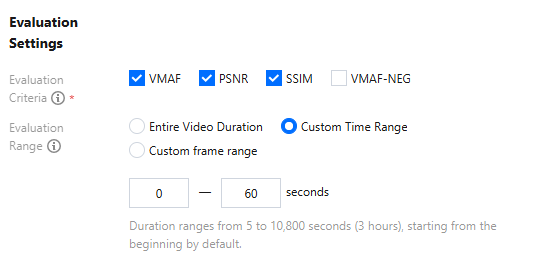
1.3 In selecting evaluation methods, at least one of PSNR, SSIM, or VMAF can be chosen. During billing, each evaluation method will be calculated separately based on the number of evaluation frames.
For example: if the original video has 1,000 frames and 2 comparison videos are selected from COS, with PSNR, SSIM, and VMAF checked as evaluation methods, the cost incurred for the evaluation task would be:
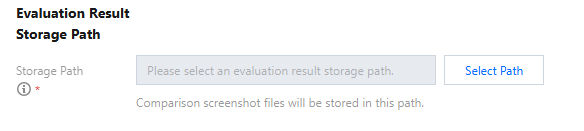
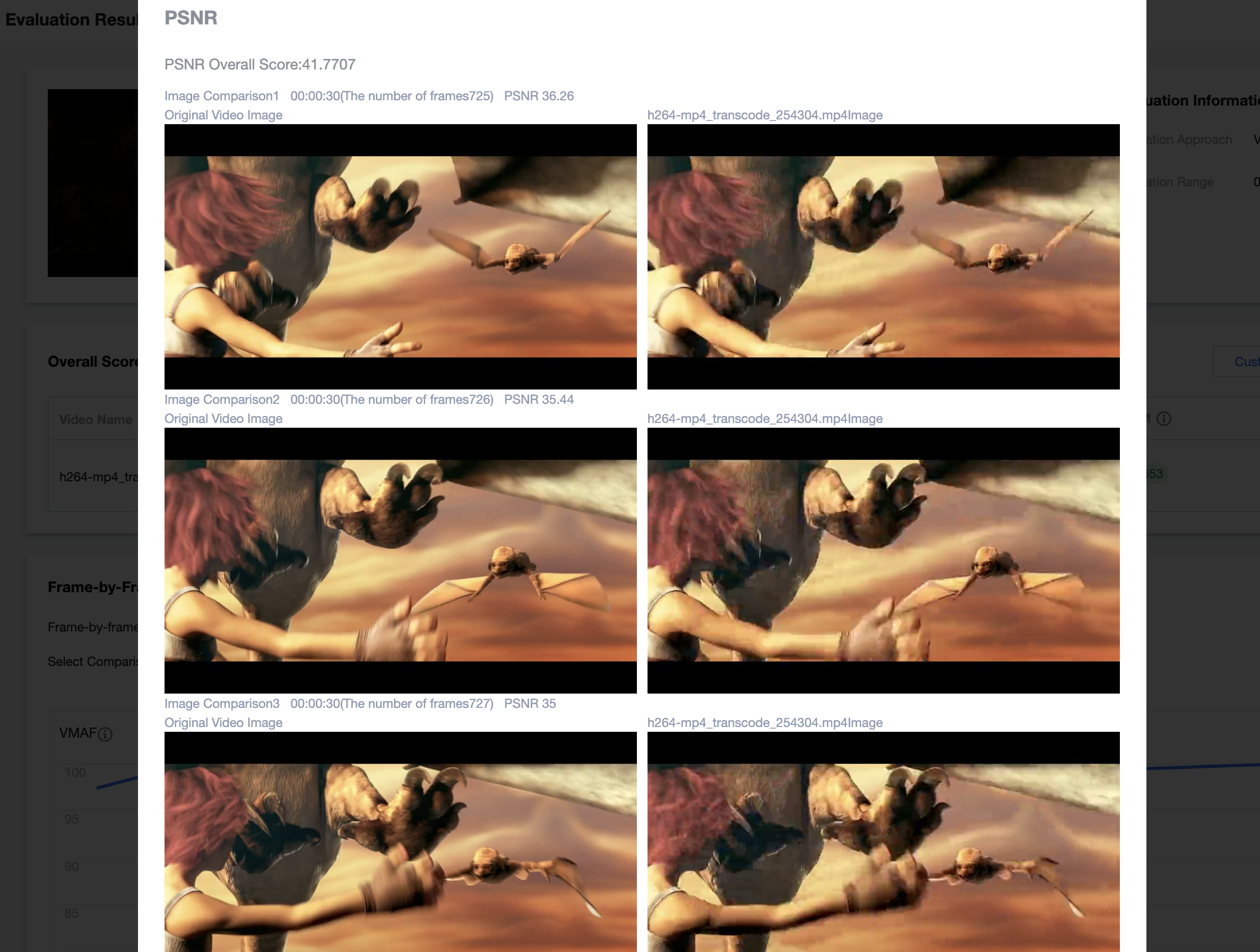
1.4 When choosing a Storage location for the results, this path will store screenshots of the 10 frames with the biggest quality difference from the original video under each evaluation method for every comparison video. The screenshot images will not be deleted with the deletion of the evaluation task, please remember to clean up in time.
2. Viewing Evaluation Results
After an evaluation task is created, a task record will be generated on the Video Quality Evaluation page. Once the evaluation task is successfully executed, you can click View Evaluation Result Report in the task details.
Note:
The retention period for evaluation tasks is 7 days. Evaluation records older than 7 days will be deleted. Please download the evaluation report results promptly.
If none of the comparison videos can generate evaluation results, the evaluation report will not be viewed.
The evaluation report contains the following content.
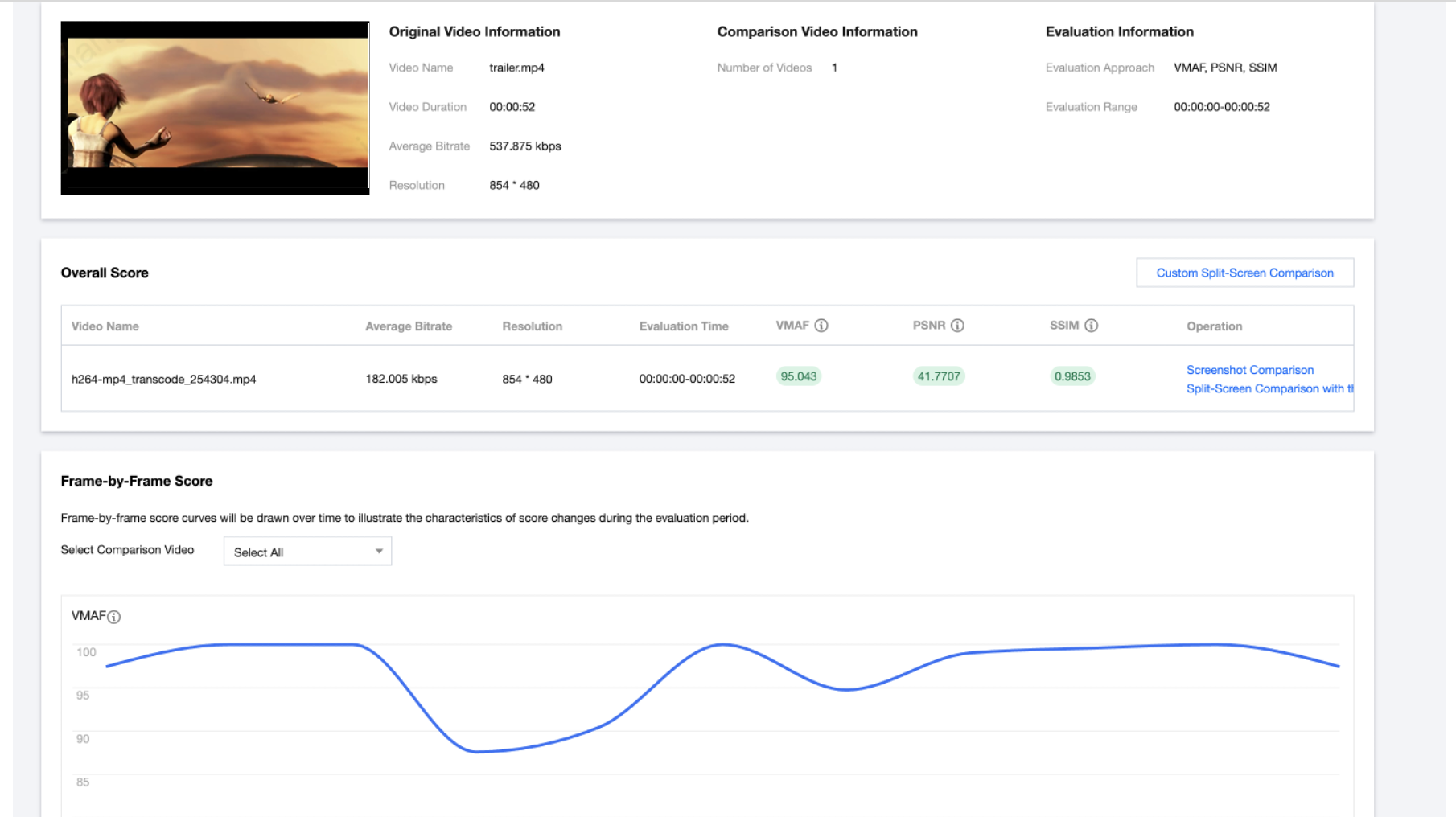
2.1. View the overall evaluation score for the comparison video. The feature also supports viewing screenshots and split-screen comparison videos.
Clicking Screenshot Comparison displays the image of the frame with the biggest video image difference from each comparison video during transcoding. It also shows the timestamp of that frame and its corresponding evaluation score.
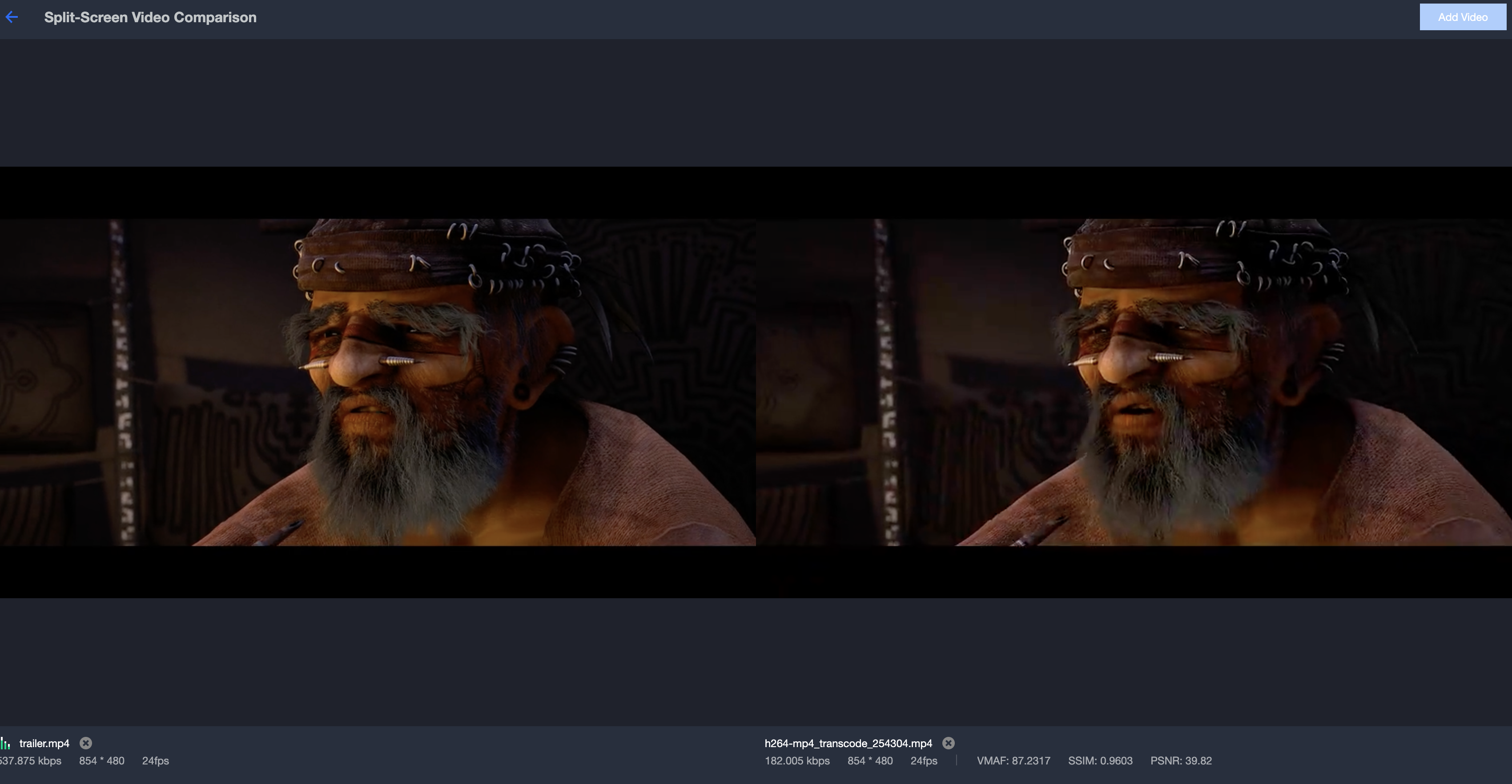
Click Split-Screen Comparison with Original Video to play multiple videos simultaneously. This feature supports synchronously zooming in and out on multiple videos.
2.2. View the video evaluation chart. The feature also supports filtering and comparing videos.